# Raspberry Breadstick

The fully featured Breadstick for your breadboard!  Brought to you by Breadstick Innovations.

<figure><img src="https://2808519483-files.gitbook.io/~/files/v0/b/gitbook-x-prod.appspot.com/o/spaces%2FI2jtNl20mw4WYRE8MWgw%2Fuploads%2FywHSPvGPzDhNf33VcDEn%2F24-04-20%2009-23-37%20oroo.jpg?alt=media&amp;token=c8974816-bfe3-40b5-92d6-8637cd399156" alt=""><figcaption></figcaption></figure>

## Product Page

<https://shop.breadstick.ca/products/raspberry-breadstick-rp2040>

[Buy from Crowd Supply](https://www.crowdsupply.com/breadstick-innovations/raspberry-breadstick)

## Circuit Python UF2 File

<https://circuitpython.org/board/breadstick_raspberry/>

## Circuit Python Library Bundle

<https://circuitpython.org/libraries>

## Pinout

<figure><img src="https://2808519483-files.gitbook.io/~/files/v0/b/gitbook-x-prod.appspot.com/o/spaces%2FI2jtNl20mw4WYRE8MWgw%2Fuploads%2FeH1OS2r6Oblm0MA97E9g%2FRev0.2-Pinout.jpg?alt=media&amp;token=fad02382-6d94-431e-a374-7cee9184de87" alt=""><figcaption></figcaption></figure>

## Features

<figure><img src="https://2808519483-files.gitbook.io/~/files/v0/b/gitbook-x-prod.appspot.com/o/spaces%2FI2jtNl20mw4WYRE8MWgw%2Fuploads%2F25WYJ6oHix1gUzYF0KOc%2FRev0.2-Ortho-09.jpg?alt=media&amp;token=8d4414ac-82a4-4807-87a7-0e3ba214672c" alt=""><figcaption></figcaption></figure>


# Code Examples


# Demo Code

This is the code that ships with the Raspberry Breadstick. It uses the gyroscope to change the LEDs when rotated about its z-axis.

## Required Libraries

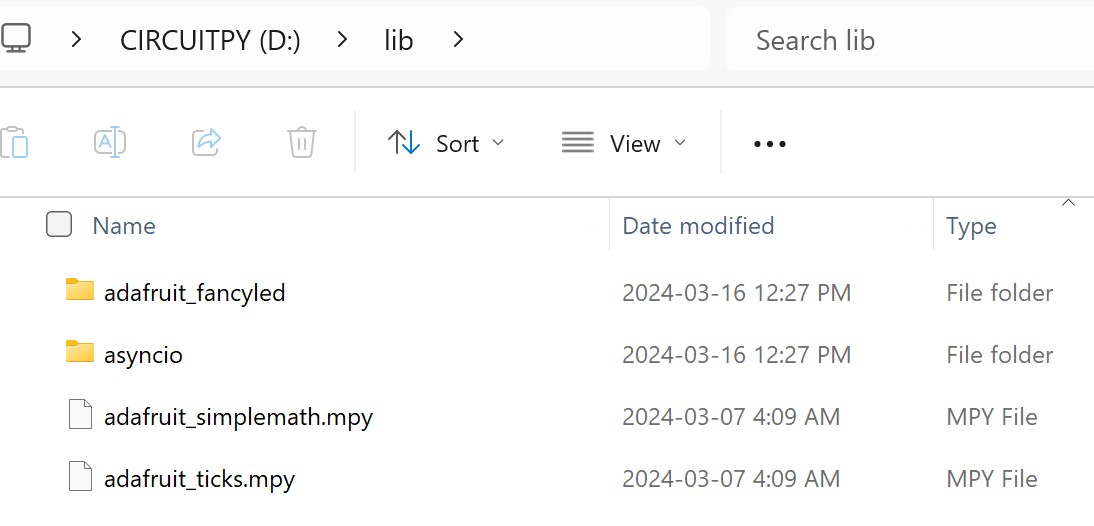
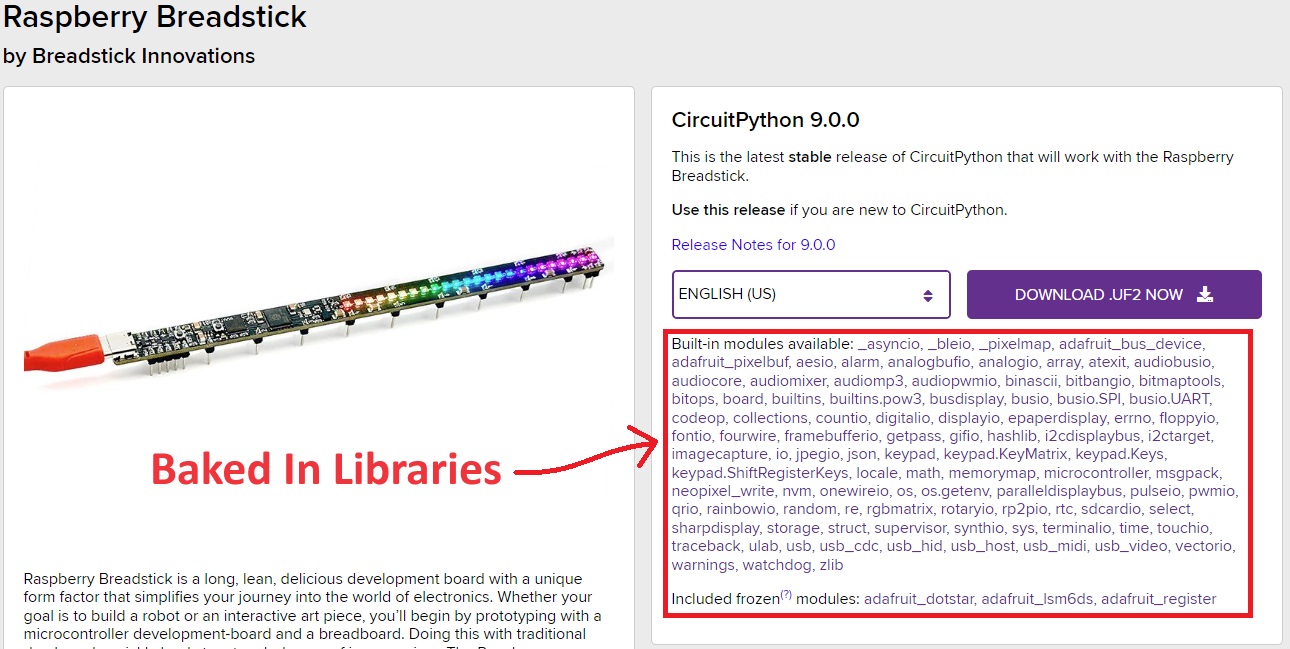
To run this code, some additional libraries that aren't baked into the Circuit Python distribution need to be copied to your Breadstick's lib folder.

<figure><img src="https://2808519483-files.gitbook.io/~/files/v0/b/gitbook-x-prod.appspot.com/o/spaces%2FI2jtNl20mw4WYRE8MWgw%2Fuploads%2FztDjDyqxcQ0Ou9uqWIY4%2FDemoCodeLibraries.jpg?alt=media&amp;token=abf96abc-c662-4832-8664-a8492de197ee" alt=""><figcaption></figcaption></figure>

<figure><img src="https://2808519483-files.gitbook.io/~/files/v0/b/gitbook-x-prod.appspot.com/o/spaces%2FI2jtNl20mw4WYRE8MWgw%2Fuploads%2FxF8a8zmt28m2hQ9BzXFi%2FBakedInLibraries.jpg?alt=media&amp;token=cbebd17a-12ca-417a-89b9-a57a3197fdf5" alt=""><figcaption></figcaption></figure>

## Code

```python
"""
Raspberry Breadstick Demo
Breadstick Innovations
March 16, 2024

This code reads the X,Y,Z accelerometer and gyrocope data from the LSM6DS over I2C 30 times per second.
The rotation about the Z-Axis is used to update the colour of the SK9822 LEDs 30 times per second.
The X,Y,Z accelerometer and gyrocope data is printed over serial 10 times per second.
Because it's printed as a tuple (acc_x,acc_y,acc_z,gyro_x,gyro_y,gyro_z) you can view live data in Mu's Plotter!
A full list of all global dictionary values are printed once per second.

Multitasking with asyncio:
Think of the processor as a server in a restaraunt and async-tasks like tables.
The server walks from table to table, helping with whatever task they have.
When the task is complete, the table says to the server, "We're good for at least 5 minutes."
If other tables are waiting to be helped, the server goes and helps them; if there are no other tables, it waits.
So long as it doesn't get busy doing other things, the server will make it back to help that first table in 5 minutes.
You won't get perfect timing, it's not interrupt based, but it's a pretty good solution for juggling multiple tasks.

async def is used for making async functions.
Using frequency as an input lets you decide how many times per second its internal loop runs.
These functions can have additional inputs, like pins for inputs and outputs.
You can create many async tasks from the same async def funtion.
Think of 3 LEDs on 3 separate I/O pins blinking at different frequencies, you'd only write 1 function but make 3 tasks from it.

Each of these tasks is basically a self-contained loop.
Sometimes you want to use information from one to affect something in another.
We do this by giving them all access to a shared global dictionary that they can all read and write from.
This way the LED loop can see what the latest gyroscope measurment was and use it to change the LED colour.
"""


"""
Import Libraries & Modules
"""
# Import pin names so you can use them in your code
# The * imports everything so you can just type D4 instead of board.D4 each time
from board import *

# The multitasking library
# Not as scary as it seems
import asyncio

# Lets you easily map raw sensor values like 0-65535 to useful ranges like 0-10
from adafruit_simplemath import map_range

# DotStar LED Libraries
from adafruit_dotstar import DotStar
from adafruit_fancyled.adafruit_fancyled import CRGB, CHSV

# I2C Acceleromter and Gyroscope
import busio
from adafruit_lsm6ds.lsm6ds3trc import LSM6DS3TRC as LSM6DS
from adafruit_lsm6ds import Rate, AccelRange, GyroRange


"""
Define Functions To Be Called By Your Code
"""


async def status_update(frequency):
    """Prints current values in the global shared dictionary."""

    """
    Initial Setup
    """
    period = 1 / frequency
    global shared


    """
    Loop
    """
    while True:
        try:
            print()
            for key in shared.keys():
                print(key, ":", shared[key])
            await asyncio.sleep(period)
        except:
            print("Status Update Error")
            await asyncio.sleep(period)


async def IMU_plotter_update(frequency):
    """Prints plotter values as tuple for plotting."""

    """
    Initial Setup
    """
    period = 1 / frequency
    global shared

    scale = 5 #Only Makes Gyro Values Bigger On Plotter

    """
    Loop
    """
    while True:
        try:
            print((shared['acc_x'],shared['acc_y'],shared['acc_z'],shared['gyro_x']*scale,shared['gyro_y']*scale,shared['gyro_z']*scale))
            await asyncio.sleep(period)
        except:
            print("Plotter Update Error")
            await asyncio.sleep(period)


async def led_update(frequency):
    """Updates LED Strip."""

    """
    Initial Setup
    """
    period = 1 / frequency
    global shared
    leds = DotStar(DOTSTAR_CLOCK, DOTSTAR_DATA, 24, brightness=0.25, auto_write=False)
    leds.fill((0, 0, 0))
    offset = 1

    """
    Loop
    """
    while True:
        try:
            offset += map_range(shared["gyro_z"], -10, 10, -1, 1)

            for i in range(24):
                c = CRGB(CHSV(i / 24 / 5 + offset, 1.0, 0.1))
                leds[i] = c.pack()
            leds.show()
            await asyncio.sleep(period)
        except:
            print("LED Error")
            await asyncio.sleep(period)


async def imu_update(frequency):
    """Reads latest X,Y,Z values from the Gyroscope and Accelerometer."""

    """
    Initial Setup
    """
    period = 1 / frequency

    global shared
    shared["acc_x"] = 0
    shared["acc_y"] = 0
    shared["acc_z"] = 0
    shared["gyro_x"] = 0
    shared["gyro_y"] = 0
    shared["gyro_z"] = 0

    # Setup I2C Accelerometer and Gyroscope
    i2c = busio.I2C(IMU_SCL, IMU_SDA)
    IMU = LSM6DS(i2c)
    IMU.accelerometer_range = AccelRange.RANGE_4G
    print("Accelerometer range set to: %d G" % AccelRange.string[IMU.accelerometer_range])
    IMU.gyro_range = GyroRange.RANGE_1000_DPS
    print("Gyro range set to: %d DPS" % GyroRange.string[IMU.gyro_range])
    IMU.accelerometer_data_rate = Rate.RATE_1_66K_HZ
    print("Accelerometer rate set to: %d HZ" % Rate.string[IMU.accelerometer_data_rate])
    IMU.gyro_data_rate = Rate.RATE_1_66K_HZ
    print("Gyro rate set to: %d HZ" % Rate.string[IMU.gyro_data_rate])

    """
    Loop
    """
    while True:
        try:
            shared["acc_x"], shared["acc_y"], shared["acc_z"] = IMU.acceleration
            shared["gyro_x"], shared["gyro_y"], shared["gyro_z"] = IMU.gyro
            await asyncio.sleep(period)
        except:
            print("IMU Update Error")
            await asyncio.sleep(period)


async def main():
    """Main Program Loop.  Gets called below by asyncio.run(main())."""
    imu_task = asyncio.create_task(imu_update(30))
    led_task = asyncio.create_task(led_update(30))
    plotter_task = asyncio.create_task(IMU_plotter_update(10))
    status_task = asyncio.create_task(status_update(1))

    await imu_task
    await led_task
    await plotter_task
    await status_task


"""
This Is Where Code Execution Actually Begins!
"""

# Dictionary of global values accessible to async functions
shared = {}

# Run main loop
asyncio.run(main())

```


# POV Wand

Use your Raspberry Breadstick as a POV (Persistance Of Vision) wand to draw images in the air using the LEDs!

{% embed url="<https://x.com/breadstick_kits/status/1793110193330667997>" %}

## Required Libraries

<figure><img src="https://2808519483-files.gitbook.io/~/files/v0/b/gitbook-x-prod.appspot.com/o/spaces%2FI2jtNl20mw4WYRE8MWgw%2Fuploads%2FZ2VEaAGvt2Zu7C5cqZpd%2Fimage.png?alt=media&amp;token=47886ab6-594a-4599-ae74-d3be9f18506f" alt=""><figcaption><p>The rest of the libraries we import are already included with the Breadstick's CircuitPython distribution.</p></figcaption></figure>

<figure><img src="https://2808519483-files.gitbook.io/~/files/v0/b/gitbook-x-prod.appspot.com/o/spaces%2FI2jtNl20mw4WYRE8MWgw%2Fuploads%2FdejiJysYuR64HqGKlvYK%2FHappyCat.bmp?alt=media&amp;token=0cebb0ce-0c57-4152-9938-99fe3417e760" alt=""><figcaption><p>HappyCat.bmp</p></figcaption></figure>

{% file src="/files/Zsx4opeRKWrnUPBsgOCz" %}

## Code

```python
"""
Raspberry Breadstick POV Display
www.learn.breadstick.ca
Michael Rangen
May 19, 2024

Loads an indexed bitmap impage and generates a
persistance of vision display as the Breadstick is waved
through the air.

To create an image, start in MSPaint, set the image
height to 24 pixels, and as wide as you want. Alternatively,
copy an image, paste it into paint, and scale the image to
24 pixels tall. Fill the background with black, and save as
as 24-bit bmp file. Open the image in GIMP, and in the toolbar
click Image > Mode > Indexed > Convert before returning to the
toolbar and clicking File > Overwrite your_image.bmp.

SK9822 LEDs are not initialized as DotStar objects, instead
data is sent to them by passing prepared bytearrays to a
bitbangio.SPI object clocking at 12MHz.

The bytearrays are prepared by using adafruit_imageload and
the displayio libraries to extract pixel data from an indexed
bitmap file stored in the root directory of the Breadstick.
A buffer of black columns is added to either side of the image.
Pixel data is padded with necessary bites defined by the SK9822
LED datasheet.

The LSM6DS IMU provides gyroscope data over I2C to determine
which direction the Breadstick is being waved and to control the
delay between each column being sent to the LEDs.
"""


"""
User Controls
"""
IMAGE_PATH = "HappyCat.bmp"
LED_BRIGHTNESS = 0.001
PIXEL_DELAY = 250
IMAGE_PADDING = 4


"""
Library Imports
"""
from board import *
import time

# For SK9822 LEDs
from displayio import Bitmap, Palette
import adafruit_imageload
import bitbangio
from microcontroller import delay_us

# For IMU (Gryoscope & Accellerometer)
import busio
from adafruit_lsm6ds.lsm6ds3trc import LSM6DS3TRC as LSM6DS
from adafruit_lsm6ds import Rate, AccelRange, GyroRange

# Garbage Collector
import gc

"""
LED Setup
"""
spi = bitbangio.SPI(DOTSTAR_CLOCK, DOTSTAR_DATA)
while not spi.try_lock():
    pass
spi.configure(baudrate=12000000)


"""
IMAGE Setup
"""
my_bitmap, my_palette = adafruit_imageload.load(
    IMAGE_PATH, bitmap=Bitmap, palette=Palette
)

columns = []

start = [0, 0, 0, 0]
end = [255, 255, 255, 255]
bright = 225 + int(LED_BRIGHTNESS * 30)

# Pad the left side of the image with black columns
for x in range(0, IMAGE_PADDING, 1):
    column = []
    column.extend(start)
    for y in range(my_bitmap.height - 1, -1, -1):
        column.append(bright)
        r = 0
        g = 0
        b = 0
        column.append(b)
        column.append(g)
        column.append(r)
    column.extend(end)
    columns.append(bytearray(column))
# Create columns from the indexed bitmap file.
# If you're getting errors about ColorConverter
# then your bitmap likely is in RGB mode.
# Open it in GIMP
# Image > Mode > Indexed > Convert
# File > Overwrite your_image.bmp
for x in range(0, my_bitmap.width, 1):
    column = []
    column.extend(start)
    for y in range(my_bitmap.height - 1, -1, -1):
        column.append(bright)
        pixel = my_palette[my_bitmap[x, y]]
        r = (pixel >> 16) & 0xFF
        g = (pixel >> 8) & 0xFF
        b = pixel & 0xFF

        column.append(b)
        column.append(g)
        column.append(r)
    column.extend(end)
    columns.append(bytearray(column))
# Pad the right side of the image with black columns
for x in range(0, IMAGE_PADDING, 1):
    column = []
    column.extend(start)
    for y in range(my_bitmap.height - 1, -1, -1):
        column.append(bright)
        r = 0
        g = 0
        b = 0
        column.append(b)
        column.append(g)
        column.append(r)
    column.extend(end)
    columns.append(bytearray(column))
"""
IMU Setup
"""
i2c = busio.I2C(IMU_SCL, IMU_SDA)
IMU = LSM6DS(i2c)
IMU.accelerometer_range = AccelRange.RANGE_4G
print("Accelerometer range set to: %d G" % AccelRange.string[IMU.accelerometer_range])
IMU.gyro_range = GyroRange.RANGE_1000_DPS
print("Gyro range set to: %d DPS" % GyroRange.string[IMU.gyro_range])
IMU.accelerometer_data_rate = Rate.RATE_1_66K_HZ
print("Accelerometer rate set to: %d HZ" % Rate.string[IMU.accelerometer_data_rate])
IMU.gyro_data_rate = Rate.RATE_1_66K_HZ
print("Gyro rate set to: %d HZ" % Rate.string[IMU.gyro_data_rate])

"""
Free Up Memory
"""
gc.collect()


"""
Main Program Loop
"""
while True:

    gyro_x, gyro_y, gyro_z = IMU.gyro
    if abs(gyro_z) < 0.001:
        gyro_z = 0.001
    col_delay = abs(int(PIXEL_DELAY / gyro_z))

    if gyro_z < 0:
        for i in range(0, len(columns), 1):
            gyro_x, gyro_y, gyro_z = IMU.gyro
            if abs(gyro_z) < 0.001:
                gyro_z = 0.001
            col_delay = abs(int(PIXEL_DELAY / gyro_z))
            if gyro_z > 0:
                break
            else:
                spi.write(columns[i])
                delay_us(col_delay)
    else:
        for i in range(len(columns) - 1, -1, -1):
            gyro_x, gyro_y, gyro_z = IMU.gyro
            if abs(gyro_z) < 0.001:
                gyro_z = 0.001
            col_delay = abs(int(PIXEL_DELAY / gyro_z))
            if gyro_z < 0:
                break
            else:
                spi.write(columns[i])
                delay_us(col_delay)

```


# Pride Flags POV Wand

Pride Month is here! Wave a Pride flag and spread some love!

## Project Files

{% file src="/files/e6cYAgtHMmQf83p2Qc47" %}

{% file src="/files/NSr6Zn0JdxBLNgyLTUTC" %}

{% file src="/files/79zszvOCYLzugC6Gwzut" %}

{% file src="/files/GuBrvhQlmbZkl5eNXa5t" %}

{% file src="/files/0RsNpVnkS8SlWjHV02R2" %}

{% file src="/files/u6YIjO7BWkchWSKIoFhm" %}

## Code

```python
"""
Raspberry Breadstick Pride Month POV Display
learn.breadstick.ca
Michael Rangen
May 28, 2024

Breadstick Innovations is owned by a couple of gay engineering technologists.
June is Pride Month, a time to celebrate all the LGBTQ2S+ people in our vast community!

To anyone who needs to hear this - I am proud of you.
I'll write it here and forever - Love is love <3

Use these pride flags to spread some love!
"""


"""
User Controls
"""
# Select a flag by uncommenting it
IMAGE_PATH = "TraditionalPrideFlag.bmp"
#IMAGE_PATH = "BiPrideFlag.bmp"
#IMAGE_PATH = "TransPrideFlag.bmp"
#IMAGE_PATH = "LesbianPrideFlag.bmp"
#IMAGE_PATH = "PansexualPrideFlag.bmp"

LED_BRIGHTNESS = 0.25
PIXEL_DELAY = 250
IMAGE_PADDING = 0


"""
Library Imports
"""
from board import *
import time

# For SK9822 LEDs
from displayio import Bitmap, Palette
import adafruit_imageload
import bitbangio
from microcontroller import delay_us

# For IMU (Gryoscope & Accellerometer)
import busio
from adafruit_lsm6ds.lsm6ds3trc import LSM6DS3TRC as LSM6DS
from adafruit_lsm6ds import Rate, AccelRange, GyroRange

# Garbage Collector
import gc

"""
LED Setup
"""
spi = bitbangio.SPI(DOTSTAR_CLOCK, DOTSTAR_DATA)
while not spi.try_lock():
    pass
spi.configure(baudrate=12000000)


"""
IMAGE Setup
"""
my_bitmap, my_palette = adafruit_imageload.load(
    IMAGE_PATH, bitmap=Bitmap, palette=Palette
)

columns = []

start = [0, 0, 0, 0]
end = [255, 255, 255, 255]
bright = 225 + int(LED_BRIGHTNESS * 30)

# Pad the left side of the image with black columns
for x in range(0, IMAGE_PADDING, 1):
    column = []
    column.extend(start)
    for y in range(my_bitmap.height - 1, -1, -1):
        column.append(bright)
        r = 0
        g = 0
        b = 0
        column.append(b)
        column.append(g)
        column.append(r)
    column.extend(end)
    columns.append(bytearray(column))
# Create columns from the indexed bitmap file.
# If you're getting errors about ColorConverter
# then your bitmap likely is in RGB mode.
# Open it in GIMP
# Image > Mode > Indexed > Convert
# File > Overwrite your_image.bmp
for x in range(0, my_bitmap.width, 1):
    column = []
    column.extend(start)
    for y in range(my_bitmap.height - 1, -1, -1):
        column.append(bright)
        pixel = my_palette[my_bitmap[x, y]]
        r = (pixel >> 16) & 0xFF
        g = (pixel >> 8) & 0xFF
        b = pixel & 0xFF

        column.append(b)
        column.append(g)
        column.append(r)
    column.extend(end)
    columns.append(bytearray(column))
# Pad the right side of the image with black columns
for x in range(0, IMAGE_PADDING, 1):
    column = []
    column.extend(start)
    for y in range(my_bitmap.height - 1, -1, -1):
        column.append(bright)
        r = 0
        g = 0
        b = 0
        column.append(b)
        column.append(g)
        column.append(r)
    column.extend(end)
    columns.append(bytearray(column))
"""
IMU Setup
"""
i2c = busio.I2C(IMU_SCL, IMU_SDA)
IMU = LSM6DS(i2c)
IMU.accelerometer_range = AccelRange.RANGE_4G
print("Accelerometer range set to: %d G" % AccelRange.string[IMU.accelerometer_range])
IMU.gyro_range = GyroRange.RANGE_1000_DPS
print("Gyro range set to: %d DPS" % GyroRange.string[IMU.gyro_range])
IMU.accelerometer_data_rate = Rate.RATE_1_66K_HZ
print("Accelerometer rate set to: %d HZ" % Rate.string[IMU.accelerometer_data_rate])
IMU.gyro_data_rate = Rate.RATE_1_66K_HZ
print("Gyro rate set to: %d HZ" % Rate.string[IMU.gyro_data_rate])

"""
Free Up Memory
"""
gc.collect()


"""
Main Program Loop
"""
while True:

    gyro_x, gyro_y, gyro_z = IMU.gyro
    if abs(gyro_z) < 0.001:
        gyro_z = 0.001
    col_delay = abs(int(PIXEL_DELAY / gyro_z))

    if gyro_z < 0:
        for i in range(0, len(columns), 1):
            gyro_x, gyro_y, gyro_z = IMU.gyro
            if abs(gyro_z) < 0.001:
                gyro_z = 0.001
            col_delay = abs(int(PIXEL_DELAY / gyro_z))
            if gyro_z > 0:
                break
            else:
                spi.write(columns[i])
                delay_us(col_delay)
    else:
        for i in range(len(columns) - 1, -1, -1):
            gyro_x, gyro_y, gyro_z = IMU.gyro
            if abs(gyro_z) < 0.001:
                gyro_z = 0.001
            col_delay = abs(int(PIXEL_DELAY / gyro_z))
            if gyro_z < 0:
                break
            else:
                spi.write(columns[i])
                delay_us(col_delay)

```


# 6-Axis IMU

The LSM6DS integrates both a 3-Axis Accellerometer and a 3-Axis Gyroscope in its tiny 3mm x 2.5mm package!

<div data-full-width="false"><figure><img src="https://2808519483-files.gitbook.io/~/files/v0/b/gitbook-x-prod.appspot.com/o/spaces%2FI2jtNl20mw4WYRE8MWgw%2Fuploads%2FwcDSMh28Lsp9t7NKUBoh%2F6-axisimuguide2.jpg?alt=media&amp;token=ecc0d5a0-0fe8-4408-8f73-d5988518b958" alt=""><figcaption></figcaption></figure></div>

## Code

```python
'''
Raspberry Breadstick LSM6DS 6-Axis IMU (Gyroscope + Accelerometer)
May 28, 2024
Breadstick Innovations

When reset, the board takes 100 readings and averages them to calibrate
IMU offsets; the device must be flat on the table for this.
After calibration, tuples will be printed every 50ms, to be viewed
in Mu's plotter.
'''

from board import *
from time import sleep
import busio
from adafruit_lsm6ds.lsm6ds3trc import LSM6DS3TRC as LSM6DS
from adafruit_lsm6ds import Rate, AccelRange, GyroRange

i2c = busio.I2C(IMU_SCL, IMU_SDA)

# Setup I2C Accelerometer and Gyroscope
IMU = LSM6DS(i2c)
IMU.accelerometer_range = AccelRange.RANGE_4G
print("Accelerometer range set to: %d G" % AccelRange.string[IMU.accelerometer_range])
IMU.gyro_range = GyroRange.RANGE_1000_DPS
print("Gyro range set to: %d DPS" % GyroRange.string[IMU.gyro_range])
IMU.accelerometer_data_rate = Rate.RATE_1_66K_HZ
print("Accelerometer rate set to: %d HZ" % Rate.string[IMU.accelerometer_data_rate])
IMU.gyro_data_rate = Rate.RATE_1_66K_HZ
print("Gyro rate set to: %d HZ" % Rate.string[IMU.gyro_data_rate])

#Collect samples for calibration
#Device must remain perfectly still during calibration
num_samples = 100
accel_bias = [0,0,0]
gyro_bias = [0,0,0]
for i in range(num_samples):
    ax, ay,az = IMU.acceleration
    gx,gy,gz = IMU.gyro
    accel_bias[0] += ax
    accel_bias[1] += ay
    accel_bias[2] += az - 9.81
    gyro_bias[0] += gx
    gyro_bias[1] += gy
    gyro_bias[2] += gz

# Average the bias values
accel_bias = [total / num_samples for total in accel_bias]
gyro_bias = [total / num_samples for total in gyro_bias]

bax, bay, baz = accel_bias
bgx, bgy, bgz = gyro_bias

print('IMU calibration complete')
print(f'Accelerometer Offsets:\tX:{bax}\tY:{bay}\tZ:{baz}')
print(f'Gyroscope Offsets:\tX:{bgx}\tY:{bgy}\tZ:{bgz}')
sleep(5)

while True:
    ax, ay,az = IMU.acceleration
    gx,gy,gz = IMU.gyro
    ax -= bax
    ay -= bay
    az -= baz
    gx -= bgx
    gy -= bgy
    gz -= bgz
    
    print((ax,ay,az,gx,gy,gz))
    sleep(0.05)
```


# RGB Blink

Uses the DotStar library to blink the SK9822 addressable RGB LEDs.

## Code

```python
"""
Raspberry Breadstick RGB Blink
Breadstick Innovations
March 26, 2024

This code uses the DotStar library to blink 3 of the SK9822 RGB LEDs
"""

from board import *
from time import sleep
from adafruit_dotstar import DotStar

leds = DotStar(DOTSTAR_CLOCK, DOTSTAR_DATA, 24, brightness=0.02, auto_write=False)

RED = (255,0,0)
GREEN = (0,255,0)
BLUE = (0,0,255)
OFF = (0,0,0)

leds.fill(OFF)
leds.show()

while True:
    leds[0] = RED
    leds.show()
    sleep(0.1)
    
    
    leds[0] = OFF
    leds.show()
    sleep(0.1)
    
    leds[12] = GREEN
    leds.show()
    sleep(0.1)
    
    
    leds[12] = OFF
    leds.show()
    sleep(0.1)
    
    leds[23] = BLUE
    leds.show()
    sleep(0.1)
    
    
    leds[23] = OFF
    leds.show()
    sleep(0.1)
    
    
```


# AsyncIO RGB Blink

This time the leds are blinked without the busy delay of the time.sleep() method.

## Code

```python
"""
Raspberry Breadstick AsyncIO RGB Blink
Breadstick Innovations
March 26, 2024

This code uses the DotStar library to blink 3 of the SK9822 RGB LEDs, 
without time.sleep() based delays.
"""

from board import *
#from time import sleep
from adafruit_dotstar import DotStar
import asyncio

leds = DotStar(DOTSTAR_CLOCK, DOTSTAR_DATA, 24, brightness=0.02, auto_write=False)

RED = (255,0,0)
GREEN = (0,255,0)
BLUE = (0,0,255)
OFF = (0,0,0)

leds.fill(OFF)
leds.show()

async def blinker (led_num, color, frequency):
    
    period = 1/frequency
    global leds
    
    while True:
        leds[led_num] = color
        await asyncio.sleep(period)
        
        leds[led_num] = (0,0,0)
        await asyncio.sleep(period)
    

async def led_refresh (frequency):
    period = 1/frequency
    global leds
    
    while True:
        leds.show()
        await asyncio.sleep(period)
        
async def main():
    red = asyncio.create_task(blinker(0,RED,1))
    green = asyncio.create_task(blinker(12,GREEN,5))
    blue = asyncio.create_task(blinker(23,BLUE,9))
    refresh = asyncio.create_task(led_refresh(30))
    
    await red
    await green
    await blue
    await refresh
    
asyncio.run(main())


```


# Digital Input

{% tabs %}
{% tab title="1" %}

<figure><img src="https://2808519483-files.gitbook.io/~/files/v0/b/gitbook-x-prod.appspot.com/o/spaces%2FI2jtNl20mw4WYRE8MWgw%2Fuploads%2FGBZiZYlpdDzFdaSIceuc%2F24-04-22%2022-08-33%202753.jpg?alt=media&amp;token=3df47659-3725-4dc1-915c-31130538d0de" alt=""><figcaption><p>3.3V and Gnd bus rails, a toggle switch on D4, and a momentary switch on D6.</p></figcaption></figure>
{% endtab %}

{% tab title="2" %}

<figure><img src="https://2808519483-files.gitbook.io/~/files/v0/b/gitbook-x-prod.appspot.com/o/spaces%2FI2jtNl20mw4WYRE8MWgw%2Fuploads%2FPV8h3B8HkECv8kEK03ip%2F24-04-22%2022-08-46%202754.jpg?alt=media&amp;token=09c8ff3e-747f-4ccc-995e-621ae87f68dc" alt=""><figcaption><p>Blue bus rail connected to gnd with an orange jumper wire. Red bus rail connected to 3.3V with a yellow jumper wire.</p></figcaption></figure>
{% endtab %}

{% tab title="3" %}

<figure><img src="https://2808519483-files.gitbook.io/~/files/v0/b/gitbook-x-prod.appspot.com/o/spaces%2FI2jtNl20mw4WYRE8MWgw%2Fuploads%2F1fY2ho0kMoTzQ582ESiA%2F24-04-22%2022-08-56%202755.jpg?alt=media&amp;token=c488dbaf-53de-4868-9b3d-31b42a385a10" alt=""><figcaption><p>Center pin of toggle switch connected directly to D4. Normally-open momentary switch connects D6 to Gnd when pushed.</p></figcaption></figure>
{% endtab %}

{% tab title="4" %}

<figure><img src="https://2808519483-files.gitbook.io/~/files/v0/b/gitbook-x-prod.appspot.com/o/spaces%2FI2jtNl20mw4WYRE8MWgw%2Fuploads%2FQEnTIxWS3OYeV74Znjtq%2F24-04-22%2022-09-06%202756.jpg?alt=media&amp;token=f86dd87f-9184-4753-bd2b-fe39d64379ec" alt=""><figcaption><p>Toggle switch in "On" possition, conecting D4 to 3.3V.</p></figcaption></figure>
{% endtab %}

{% tab title="5" %}

<figure><img src="https://2808519483-files.gitbook.io/~/files/v0/b/gitbook-x-prod.appspot.com/o/spaces%2FI2jtNl20mw4WYRE8MWgw%2Fuploads%2F8O4XjjUm1QN7XiZfqHuM%2F24-04-22%2022-09-14%202757.jpg?alt=media&amp;token=568ff621-6a51-4e6d-833c-f45441d64b32" alt=""><figcaption><p>Toggle switch in "Off" possition, conecting D4 to Gnd.</p></figcaption></figure>
{% endtab %}

{% tab title="6" %}

<figure><img src="https://2808519483-files.gitbook.io/~/files/v0/b/gitbook-x-prod.appspot.com/o/spaces%2FI2jtNl20mw4WYRE8MWgw%2Fuploads%2FNX53RIbnujbnGEv6nOCA%2F24-04-22%2022-09-22%202758.jpg?alt=media&amp;token=5276e3cd-17b5-459c-a071-631d43cafa26" alt=""><figcaption><p>Momentary switch unpushed, internal pull-up resistor connects D6 to 3.3V.</p></figcaption></figure>
{% endtab %}

{% tab title="7" %}

<figure><img src="https://2808519483-files.gitbook.io/~/files/v0/b/gitbook-x-prod.appspot.com/o/spaces%2FI2jtNl20mw4WYRE8MWgw%2Fuploads%2FKz2DyptELD90w8GOVHog%2F24-04-22%2022-09-30%202759.jpg?alt=media&amp;token=e4748ba0-2899-4eca-9828-3d9a7f09ade7" alt=""><figcaption><p>Momentary switch pusshed, pulls D6 down to Gnd.</p></figcaption></figure>
{% endtab %}
{% endtabs %}

## Circuit Python Library

<https://docs.circuitpython.org/en/latest/shared-bindings/digitalio/index.html>

## Pull-Up Resistors

<https://en.wikipedia.org/wiki/Pull-up_resistor>

## Code

```python
"""
Digital Input Demo Code
Breadstick Innovations
April 22, 2024
https://learn.breadstick.ca/breadstick/breadsticks/raspberry-breadstick/code-examples/digital-input
"""

from board import *
from time import sleep
from digitalio import DigitalInOut, Direction, Pull
from adafruit_dotstar import DotStar

"""LED Setup"""
leds = DotStar(DOTSTAR_CLOCK, DOTSTAR_DATA, 24, brightness=0.02, auto_write=False)
RED = (255, 0, 0)
GREEN = (0, 255, 0)
BLUE = (0, 0, 255)
OFF = (0, 0, 0)
leds.fill(OFF)
leds.show()

"""Toggle Switch Setup"""
toggle_4 = DigitalInOut(D4)
toggle_4.switch_to_input()

"""Momentary Switch Setup"""
button_6 = DigitalInOut(D6)
button_6.switch_to_input(Pull.UP)

"""Loop"""
while True:
    if toggle_4.value == True:
        leds[0] = GREEN
    else:
        leds[0] = RED

    if button_6.value == True:
        leds[8] = GREEN
    else:
        leds[8] = RED
        
    leds.show()
    sleep(0.03)

```


# Digital Output

{% tabs %}
{% tab title="1" %}

<figure><img src="https://2808519483-files.gitbook.io/~/files/v0/b/gitbook-x-prod.appspot.com/o/spaces%2FI2jtNl20mw4WYRE8MWgw%2Fuploads%2FXLbs2iu6y58ijIp3URJu%2F3195BC1E-A828-4BE5-971F-222CA72457B5.jpg?alt=media&amp;token=108f1c24-c46c-4083-a996-2fedce354150" alt=""><figcaption><p>A blue LED, a 180 Ohm resistor, and an orange jumper wire.</p></figcaption></figure>
{% endtab %}

{% tab title="2" %}

<figure><img src="https://2808519483-files.gitbook.io/~/files/v0/b/gitbook-x-prod.appspot.com/o/spaces%2FI2jtNl20mw4WYRE8MWgw%2Fuploads%2FEMr8n85ZsyswlzMKEQM5%2F32CA6A64-A7ED-4B35-B52F-DB56A4BDCAD3.jpg?alt=media&amp;token=c7aa7db2-5581-4155-94bf-ad31748a824d" alt=""><figcaption><p>It may seem like a simple blue light, but there's an incredible story of innovation and tenacity behind blue LEDs.</p></figcaption></figure>
{% endtab %}

{% tab title="3" %}

<figure><img src="https://2808519483-files.gitbook.io/~/files/v0/b/gitbook-x-prod.appspot.com/o/spaces%2FI2jtNl20mw4WYRE8MWgw%2Fuploads%2FM6DuhBxNsX6pc11uQNWH%2F0FD7904D-B71B-4E48-8F53-960C2FDC4BEE.jpg?alt=media&amp;token=fd122877-4cd3-4ea8-b583-37f774a5fece" alt=""><figcaption><p>Orange jumper wire connects the blue bus-rail to GND.</p></figcaption></figure>
{% endtab %}

{% tab title="4" %}

<figure><img src="https://2808519483-files.gitbook.io/~/files/v0/b/gitbook-x-prod.appspot.com/o/spaces%2FI2jtNl20mw4WYRE8MWgw%2Fuploads%2FMyuxVOerxwbe8NeivttQ%2FB42AEDC9-0216-47B3-A894-9E800F00AA9D.jpg?alt=media&amp;token=c0a98cb0-efaa-4b0c-98a5-4317bb9f6c38" alt=""><figcaption><p>Anode (+) of LED connected to D5, Cathode (-) connected to 180 Ohm resistor, resistor connected to GND.</p></figcaption></figure>
{% endtab %}

{% tab title="5" %}

<figure><img src="https://2808519483-files.gitbook.io/~/files/v0/b/gitbook-x-prod.appspot.com/o/spaces%2FI2jtNl20mw4WYRE8MWgw%2Fuploads%2FWIbexE2TjqI5AaQwVuG4%2F5D39CC51-E2BD-4907-BC41-65C4E944D6C7.jpg?alt=media&amp;token=6a462d4c-9633-4843-8040-e7997643a267" alt=""><figcaption><p>When LED_5.value = True, D5 gets set to 3.3V, forward biasing the light emitting diode.</p></figcaption></figure>
{% endtab %}
{% endtabs %}

## Creation of the blue LED - Won a Nobel Prize!

{% embed url="<https://www.youtube.com/watch?v=AF8d72mA41M>" %}

## Code

```python
"""
Digital Output Demo Code
Breadstick Innovations
April 26, 2024
https://learn.breadstick.ca/breadstick/breadsticks/raspberry-breadstick/code-examples/digital-output
"""

from board import *
from digitalio import DigitalInOut
from time import sleep

led_5 = DigitalInOut(D5)
led_5.switch_to_output()

while True:
    led_5.value = True
    sleep(1)
    led_5.value = False
    sleep(1)
```


# PWM

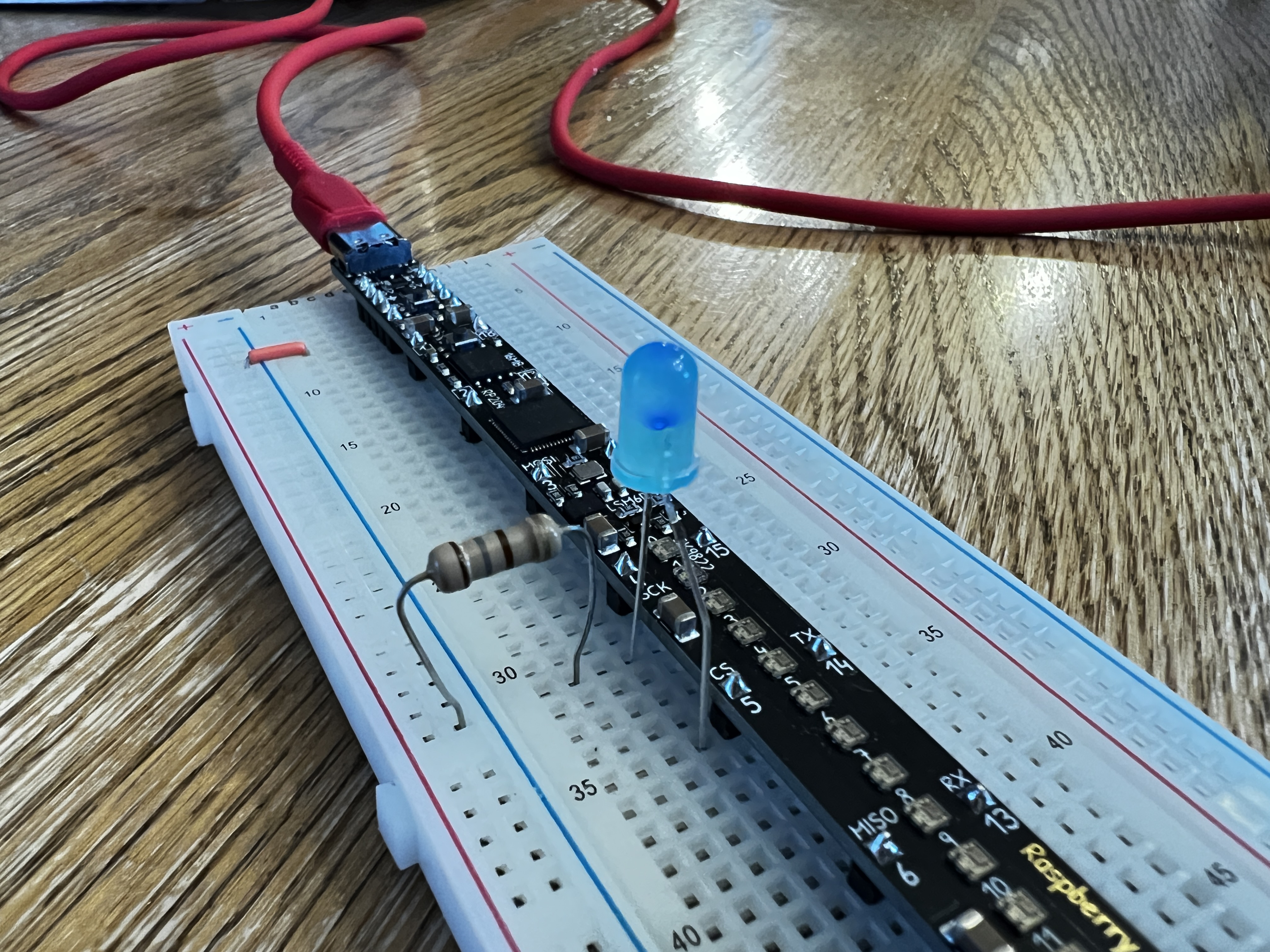
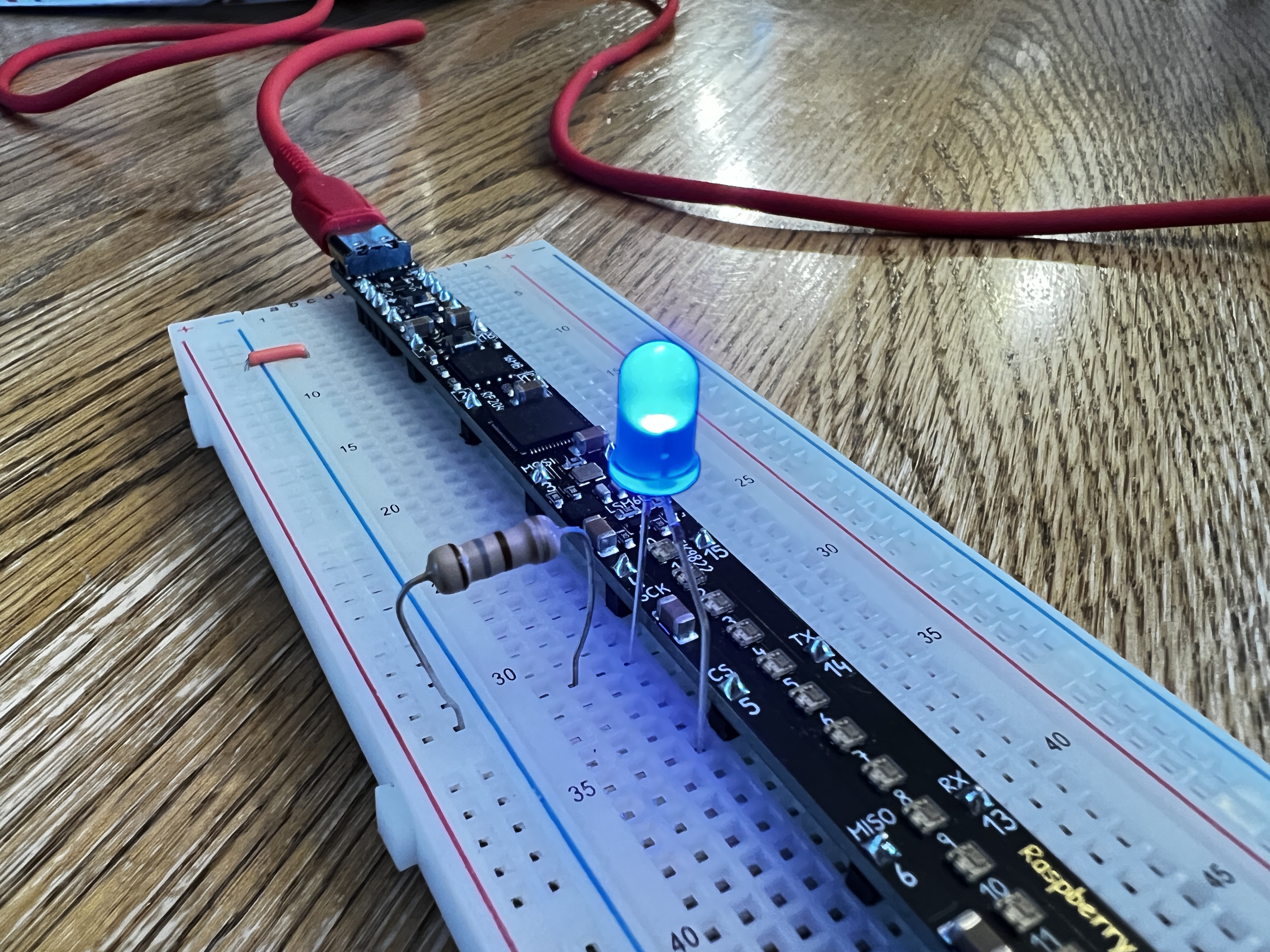
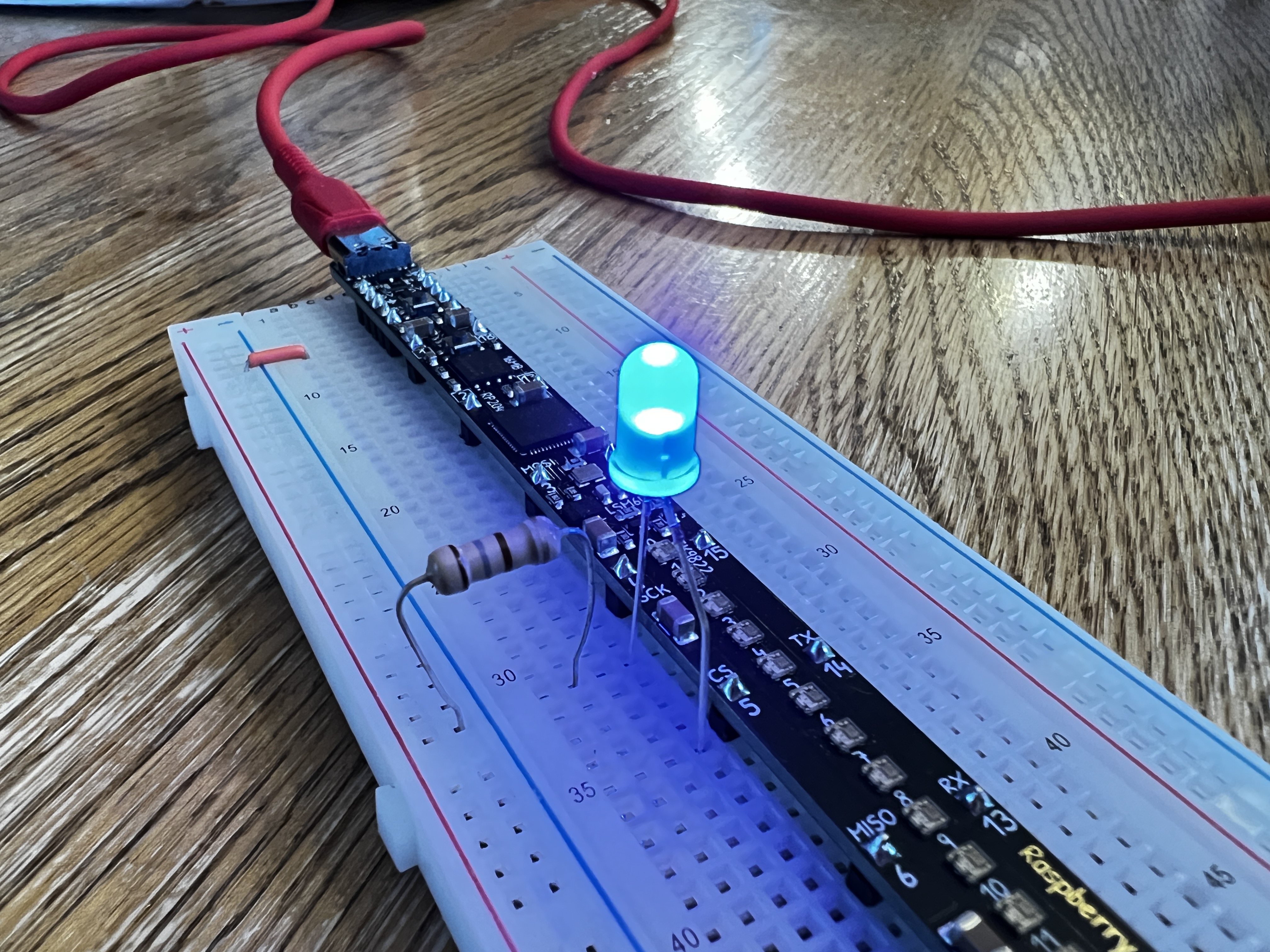
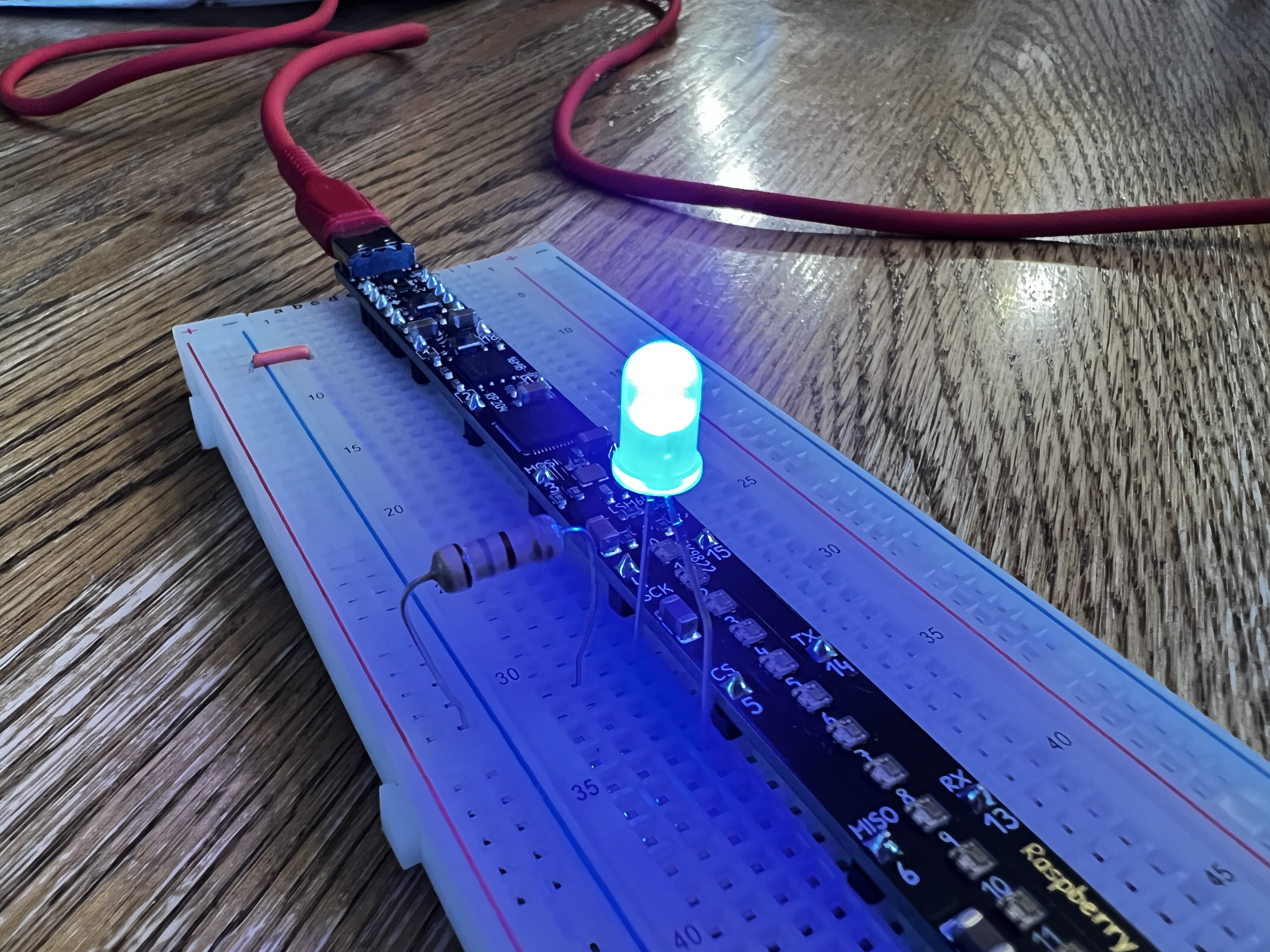
Pulse Width Modulation - If you flip an LED on and off quickly enough, you can control the brightness!

{% tabs %}
{% tab title="1" %}

<figure><img src="https://2808519483-files.gitbook.io/~/files/v0/b/gitbook-x-prod.appspot.com/o/spaces%2FI2jtNl20mw4WYRE8MWgw%2Fuploads%2FWBtlhUaLdNjIpkS4xx4Z%2F8200E578-36FD-4A6F-A97E-58F31EC847FF.jpg?alt=media&amp;token=c8718f97-1867-4c7e-86fe-b3fab1df7922" alt=""><figcaption></figcaption></figure>
{% endtab %}

{% tab title="2" %}

<figure><img src="https://2808519483-files.gitbook.io/~/files/v0/b/gitbook-x-prod.appspot.com/o/spaces%2FI2jtNl20mw4WYRE8MWgw%2Fuploads%2FNgeVama2RHlHkSUkXdrC%2F8F97CFC9-A688-4483-AEA4-B75144C8443B.jpg?alt=media&amp;token=796eb276-de5d-44e6-b334-e2a2653060d1" alt=""><figcaption></figcaption></figure>
{% endtab %}

{% tab title="3" %}

<figure><img src="https://2808519483-files.gitbook.io/~/files/v0/b/gitbook-x-prod.appspot.com/o/spaces%2FI2jtNl20mw4WYRE8MWgw%2Fuploads%2FR4iYjvXNDkBc2OhfKj8n%2F94D56170-5CB9-4B5A-99B5-1D5071CA6258.jpg?alt=media&amp;token=a6e3836b-c0a5-49d9-ae21-c54ea53b3397" alt=""><figcaption></figcaption></figure>
{% endtab %}

{% tab title="4" %}

<figure><img src="https://2808519483-files.gitbook.io/~/files/v0/b/gitbook-x-prod.appspot.com/o/spaces%2FI2jtNl20mw4WYRE8MWgw%2Fuploads%2FOq4pSecWbFgHW4Dg8CdP%2F09036ACB-7BB1-4976-9F6B-27079EB2619E.jpg?alt=media&amp;token=57160f56-d4e2-486c-a2e5-067b1c02f52a" alt=""><figcaption></figcaption></figure>
{% endtab %}

{% tab title="5" %}

<figure><img src="https://2808519483-files.gitbook.io/~/files/v0/b/gitbook-x-prod.appspot.com/o/spaces%2FI2jtNl20mw4WYRE8MWgw%2Fuploads%2FR4iYjvXNDkBc2OhfKj8n%2F94D56170-5CB9-4B5A-99B5-1D5071CA6258.jpg?alt=media&amp;token=a6e3836b-c0a5-49d9-ae21-c54ea53b3397" alt=""><figcaption></figcaption></figure>
{% endtab %}

{% tab title="6" %}

<figure><img src="https://2808519483-files.gitbook.io/~/files/v0/b/gitbook-x-prod.appspot.com/o/spaces%2FI2jtNl20mw4WYRE8MWgw%2Fuploads%2FNgeVama2RHlHkSUkXdrC%2F8F97CFC9-A688-4483-AEA4-B75144C8443B.jpg?alt=media&amp;token=796eb276-de5d-44e6-b334-e2a2653060d1" alt=""><figcaption></figcaption></figure>
{% endtab %}

{% tab title="7" %}

<figure><img src="https://2808519483-files.gitbook.io/~/files/v0/b/gitbook-x-prod.appspot.com/o/spaces%2FI2jtNl20mw4WYRE8MWgw%2Fuploads%2FWBtlhUaLdNjIpkS4xx4Z%2F8200E578-36FD-4A6F-A97E-58F31EC847FF.jpg?alt=media&amp;token=c8718f97-1867-4c7e-86fe-b3fab1df7922" alt=""><figcaption></figcaption></figure>
{% endtab %}
{% endtabs %}

## Code

```python
"""
PWM Demo Code
Breadstick Innovations
April 26, 2024
https://learn.breadstick.ca/breadstick/breadsticks/raspberry-breadstick/code-examples/pwm

duty_cycle is a 16-bit integer
2^16 = 65536 values
0 is one of those values,
so the range is 0-65535.

range(start,stop,step)
range(0,10,1) = 0,1,2,3,4,5,6,7,8,9
range(10,0,-1) = 10,9,8,7,6,5,4,3,2,1
"""

from board import *
from pwmio import PWMOut
from time import sleep

led_5 = PWMOut(D5, frequency=500, duty_cycle=0)

while True:
    for i in range(0,65535,100):
        led_5.duty_cycle = i
        sleep(0.001)
    for i in range(65535,0,-100):
        led_5.duty_cycle = i
        sleep(0.001)
```


# ADC

Analog to Digital Conversion - Read a voltage and convert it to a number!

{% tabs %}
{% tab title="1" %}

<figure><img src="https://2808519483-files.gitbook.io/~/files/v0/b/gitbook-x-prod.appspot.com/o/spaces%2FI2jtNl20mw4WYRE8MWgw%2Fuploads%2FcN0W2FwtfWIYaePFhkGw%2FD5503657-0D93-4344-AAB8-E684C1826275.jpg?alt=media&amp;token=cc2d4e38-062f-41cf-ba1f-56c8323033d8" alt=""><figcaption></figcaption></figure>
{% endtab %}

{% tab title="2" %}

<figure><img src="https://2808519483-files.gitbook.io/~/files/v0/b/gitbook-x-prod.appspot.com/o/spaces%2FI2jtNl20mw4WYRE8MWgw%2Fuploads%2FxHtYBjy6LH7Hqy2H5YRG%2F7CDCE4DB-6B5A-4440-9A74-27E17ED3FBF8.jpg?alt=media&amp;token=8ad0f869-adda-48ee-abe0-02a918b28a21" alt=""><figcaption></figcaption></figure>
{% endtab %}

{% tab title="3" %}

<figure><img src="https://2808519483-files.gitbook.io/~/files/v0/b/gitbook-x-prod.appspot.com/o/spaces%2FI2jtNl20mw4WYRE8MWgw%2Fuploads%2FjN0Kn3wcwICHbaRrfxOZ%2FED74A970-9886-4A96-8D75-70C7209ADF79.jpg?alt=media&amp;token=dc8de2b6-b3e3-4dfd-acd5-57cecc0a79c7" alt=""><figcaption></figcaption></figure>
{% endtab %}

{% tab title="4" %}

<figure><img src="https://2808519483-files.gitbook.io/~/files/v0/b/gitbook-x-prod.appspot.com/o/spaces%2FI2jtNl20mw4WYRE8MWgw%2Fuploads%2FL2SJqgRuODT1fbydyVu3%2FB2FC43B6-4963-4A5F-ACEB-B1301F8F4FF5.jpg?alt=media&amp;token=c92339dd-17a1-4916-ba51-df6a1de33337" alt=""><figcaption></figcaption></figure>
{% endtab %}

{% tab title="5" %}

<figure><img src="https://2808519483-files.gitbook.io/~/files/v0/b/gitbook-x-prod.appspot.com/o/spaces%2FI2jtNl20mw4WYRE8MWgw%2Fuploads%2FVtw6kNSJIVflKtkJ3xyu%2F7F2E2072-F44B-417F-8E73-0A54E5D65F24.jpg?alt=media&amp;token=208e2472-a278-4c30-bde0-30908e5809df" alt=""><figcaption></figcaption></figure>
{% endtab %}

{% tab title="6" %}

<figure><img src="https://2808519483-files.gitbook.io/~/files/v0/b/gitbook-x-prod.appspot.com/o/spaces%2FI2jtNl20mw4WYRE8MWgw%2Fuploads%2Frl9hsUwqPNtdto7HrAJC%2FA32E996D-67FB-4E07-A6FB-9322F3EDC9D0.jpg?alt=media&amp;token=26c206eb-fddd-470f-a895-f839510d6480" alt=""><figcaption></figcaption></figure>
{% endtab %}

{% tab title="7" %}

<figure><img src="https://2808519483-files.gitbook.io/~/files/v0/b/gitbook-x-prod.appspot.com/o/spaces%2FI2jtNl20mw4WYRE8MWgw%2Fuploads%2FVyLk46pTzTzz8wioMTCV%2FScreenshot%202024-04-26%20220108.png?alt=media&amp;token=e64e3cf6-dd2f-4491-a5f1-d62727003f62" alt=""><figcaption></figcaption></figure>
{% endtab %}
{% endtabs %}

## ADC Pins - A1, A2, A18, A17

While all ADC pins are digital pins, not all digital pins are ADC pins.&#x20;

## Code

```python
"""
ADC Demo Code
Breadstick Innovations
April 26, 2024
https://learn.breadstick.ca/breadstick/breadsticks/raspberry-breadstick/code-examples/adc

ADC converts 0-3.3V to 16-bit integer
RP2040 has a 12-bit ADC but CircuitPython converts it to a 16-bit result.
2^16 = 65536 values
0 is one of those values,
so the range is 0-65535.
3.3V/65535 steps = 50uV/step
You won't actually measure at 50uV accuracy, closer to 1mV accuracy.
"""

from board import *
from pwmio import PWMOut
from analogio import AnalogIn
from time import sleep
from adafruit_dotstar import DotStar


def convert_voltage(ADC_value):
    return 3.3 / 65535 * ADC_value


def convert_range(ADC_value, from_max, to_max):
    return int(ADC_value / from_max * to_max)
    

pot_1 = AnalogIn(A1)
pot_18 = AnalogIn(A18)

led_5 = PWMOut(D5, frequency=500, duty_cycle=0)

leds = DotStar(DOTSTAR_CLOCK, DOTSTAR_DATA, 24, brightness=0.02, auto_write=False)

RED = (255, 0, 0)
ORANGE = (255, 75, 0)
GREEN = (0, 255, 0)
BLUE = (0, 0, 255)
OFF = (0, 0, 0)

leds.fill(OFF)
leds.show()

while True:
    ADC_1 = pot_1.value
    ADC_18 = pot_18.value

    led_5.duty_cycle = ADC_1

    voltage_1 = convert_voltage(ADC_1)
    voltage_18 = convert_voltage(ADC_18)
    print((voltage_1, voltage_18))

    bar_graph = convert_range(ADC_18, 65535, 25)
    leds.fill(OFF)
    for i in range(bar_graph):
        leds[i] = ORANGE
    leds.show()

    sleep(0.04)

```


# Servo Motor

## Circuit Python Library

<https://github.com/adafruit/Adafruit_CircuitPython_Motor>

## Code

```python
"""
Servo Demo Code
Breadstick Innovations
April 28, 2024
https://learn.breadstick.ca/breadstick/breadsticks/raspberry-breadstick/code-examples/servo-motor

Servos are controlled via a particularly defined PWM signal.
The freqency of the signal is 50Hz and duty cycle varies between 5% to 10% to swing through 180°.
This can be said another way.
The period of the signal is 20ms, and the positive pulse is varied between 1ms and 2ms.
These timings are guidelines and depend on multiple factors.
Adafruit's motor library has a Servo object that can handle converting angles to pulse widths.
Before creating a Servo object, we must first creat a PWMOut object and set the 50Hz frequency.
When creating the servo object, you can adjust the min_pulse and max_pulse to achieve 180° range.
"""

from board import *
from time import sleep
from pwmio import PWMOut
from adafruit_motor import servo

pwm_16 = PWMOut(D16, frequency=50, duty_cycle=0)
servo_16 = servo.Servo(pwm_16, min_pulse=700, max_pulse=2450)

delay = 2
while True:
    servo_16.angle = 0
    sleep(delay)

    servo_16.angle = 90
    sleep(delay)

    servo_16.angle = 180
    sleep(delay)

    servo_16.angle = 90
    sleep(delay)
```


# Raspberry Breadstick Lite

The same Raspberry Breadstick, but without the LEDs and IMU.

<figure><img src="https://2808519483-files.gitbook.io/~/files/v0/b/gitbook-x-prod.appspot.com/o/spaces%2FI2jtNl20mw4WYRE8MWgw%2Fuploads%2FGnIuvmModuK9NIFadJqk%2F24-04-20%2009-22-06%20oroo.jpg?alt=media&amp;token=9f46a1c4-9641-42b0-8e3f-82e1508bc0d7" alt=""><figcaption></figcaption></figure>

## Product Page

<https://shop.breadstick.ca/products/raspberry-breadstick-lite>

## Circuit Python UF2 File

<https://circuitpython.org/board/breadstick_raspberry/>

{% hint style="info" %}
The Raspberry Breadstick and Rasbperry Breadstick Lite use the same UF2 file.
{% endhint %}

## Circuit Python Library Bundle

<https://circuitpython.org/libraries>


# Support Boards


# I2C Devices


# I2C Bus Rail Adapter

Turn your bus rails into a convenient I2C interface for Croutons and other devices.

{% tabs %}
{% tab title="Front" %}

<figure><img src="https://2808519483-files.gitbook.io/~/files/v0/b/gitbook-x-prod.appspot.com/o/spaces%2FI2jtNl20mw4WYRE8MWgw%2Fuploads%2FfutE8CN3txuxShuwQjNa%2F24-04-20%2009-26-46%20oroo.jpg?alt=media&amp;token=3b04f124-6d9e-4f14-8e6b-a1625160778b" alt=""><figcaption></figcaption></figure>
{% endtab %}

{% tab title="Back" %}

<figure><img src="https://2808519483-files.gitbook.io/~/files/v0/b/gitbook-x-prod.appspot.com/o/spaces%2FI2jtNl20mw4WYRE8MWgw%2Fuploads%2F2iv0Ga2MimtADLFhckZ1%2F24-04-20%2009-27-05%20oroo.jpg?alt=media&amp;token=f0e255e7-face-4bc4-83e9-4238a3be7fdb" alt=""><figcaption></figcaption></figure>
{% endtab %}
{% endtabs %}

## Product Page

<https://shop.breadstick.ca/products/i2c-bus-rail-adapter>

## 5V Stemma Compatible I2C Rail Setup

<figure><img src="https://2808519483-files.gitbook.io/~/files/v0/b/gitbook-x-prod.appspot.com/o/spaces%2FI2jtNl20mw4WYRE8MWgw%2Fuploads%2FDDWg0o71AUN1B5hE4D4d%2F24-04-06%2009-39-27%204911.jpg?alt=media&amp;token=292d00c8-5c2e-4cb6-b208-1f990432aab3" alt=""><figcaption></figcaption></figure>

<figure><img src="https://2808519483-files.gitbook.io/~/files/v0/b/gitbook-x-prod.appspot.com/o/spaces%2FI2jtNl20mw4WYRE8MWgw%2Fuploads%2FXRHrSXM5LUowEI6iG1lh%2F24-04-06%2009-40-38%204913.jpg?alt=media&amp;token=e3b61483-6a3b-456b-ab6a-4ddaba4ba2c6" alt=""><figcaption></figcaption></figure>

<figure><img src="https://2808519483-files.gitbook.io/~/files/v0/b/gitbook-x-prod.appspot.com/o/spaces%2FI2jtNl20mw4WYRE8MWgw%2Fuploads%2F6krmzsYjOa4J2vNEUFW6%2F24-04-06%2009-41-27%204915.jpg?alt=media&amp;token=39c9657c-3260-4f04-b445-435b613f81c8" alt=""><figcaption></figcaption></figure>


# Weather Crouton

BME280 Temperature, Humidity, & Pressure Sensor

{% tabs %}
{% tab title="Front" %}

<figure><img src="https://2808519483-files.gitbook.io/~/files/v0/b/gitbook-x-prod.appspot.com/o/spaces%2FI2jtNl20mw4WYRE8MWgw%2Fuploads%2FjgUpsz6x9hFttZzpjgA2%2F24-04-20%2009-26-26%20oroo.jpg?alt=media&amp;token=c8abd904-4137-4b71-9fc8-2c5ce78e39c2" alt="" width="563"><figcaption></figcaption></figure>
{% endtab %}

{% tab title="Back" %}

<figure><img src="https://2808519483-files.gitbook.io/~/files/v0/b/gitbook-x-prod.appspot.com/o/spaces%2FI2jtNl20mw4WYRE8MWgw%2Fuploads%2FwRzNusZlWaJxIrNkvpXo%2F24-04-20%2009-25-53%20oroo.jpg?alt=media&amp;token=fc2cf874-6693-4d59-9e2a-816b75e8a721" alt="" width="563"><figcaption></figcaption></figure>
{% endtab %}
{% endtabs %}

## Product Page

<https://shop.breadstick.ca/products/weather-crouton>

## Circuit Python Library

<https://github.com/adafruit/Adafruit_CircuitPython_BME280>

## BME280 Datasheet

<https://www.bosch-sensortec.com/media/boschsensortec/downloads/datasheets/bst-bme280-ds002.pdf>

## Code

```python
"""
Weather Crouton (BME280) Demo Code
Breadstick Innovations
April 7, 2024
https://learn.breadstick.ca/breadstick/breadsticks/support-boards/i2c-devices/weather-crouton
"""

import board
import time
from adafruit_bme280 import basic as adafruit_bme280

crouton_i2c = board.I2C()  # Default Breadstick I2C pins D11(SCL) & D12(SDA)
bme280 = adafruit_bme280.Adafruit_BME280_I2C(crouton_i2c)  #

# Sea Level Pressure is defined as 1013.25 hPa
# This number is used for calculating bme280.altitude in meters
bme280.sea_level_pressure = 1013.25

# Uncomment this line if you want to calibrate the altitude to your location
# Warning - natural changes in air pressure will affect altimeter measurements
bme280.sea_level_pressure = bme280.pressure

while True:
    temp = bme280.temperature
    hum = bme280.relative_humidity
    pres = bme280.pressure
    alt = bme280.altitude

    plotter_data = (alt,)  # Mu's Plotter only displays tuples, this is a single object tuple

    print(plotter_data)
    print(f"Temperature: {temp} °C")
    print(f"Humidity: {hum} %")
    print(f"Pressure: {pres} hPa")
    print(f"Altitude: {alt} m")
    print("")

    time.sleep(0.1)

```

<figure><img src="https://2808519483-files.gitbook.io/~/files/v0/b/gitbook-x-prod.appspot.com/o/spaces%2FI2jtNl20mw4WYRE8MWgw%2Fuploads%2FbGbwcAFV8lqk5SuD9H4a%2Fimage.png?alt=media&amp;token=ee0fdf60-3339-46a9-913e-132febb0e43b" alt=""><figcaption></figcaption></figure>

<figure><img src="https://2808519483-files.gitbook.io/~/files/v0/b/gitbook-x-prod.appspot.com/o/spaces%2FI2jtNl20mw4WYRE8MWgw%2Fuploads%2F66rNI5j5DTheHkNp5srE%2F24-04-07%2009-27-31%204951.jpg?alt=media&amp;token=773aa0c9-3f05-463a-8a17-718c18378949" alt=""><figcaption></figcaption></figure>


# Brightness Crouton

BH1750 16-bit Ambient Light Sensor

{% tabs %}
{% tab title="Front" %}

<figure><img src="https://2808519483-files.gitbook.io/~/files/v0/b/gitbook-x-prod.appspot.com/o/spaces%2FI2jtNl20mw4WYRE8MWgw%2Fuploads%2FlEYBrbbExAlpdQsYhGDz%2F24-04-20%2009-27-46%20oroo.jpg?alt=media&amp;token=42d080a6-60d5-4cbf-82fc-536f9268dc0d" alt=""><figcaption></figcaption></figure>
{% endtab %}

{% tab title="Back" %}

<figure><img src="https://2808519483-files.gitbook.io/~/files/v0/b/gitbook-x-prod.appspot.com/o/spaces%2FI2jtNl20mw4WYRE8MWgw%2Fuploads%2F6XeIz5tMzurhduIQU8tv%2F24-04-20%2009-25-24%20oroo.jpg?alt=media&amp;token=c931849f-9cce-4b13-b4d9-b249375fc63c" alt=""><figcaption></figcaption></figure>
{% endtab %}
{% endtabs %}

## Product Page

<https://shop.breadstick.ca/products/brightness-crouton>

## Circuit Python Library

<https://github.com/adafruit/Adafruit_CircuitPython_BH1750>

## BH1750 Datasheet

<https://www.mouser.ca/datasheet/2/348/Rohm_11162017_ROHMS34826-1-1279292.pdf>

## Code

```python
"""
Brightness Crouton (BH1750) Demo Code
Breadstick Innovations
April 16, 2024
https://learn.breadstick.ca/breadstick/breadsticks/support-boards/i2c-devices/brightness-crouton
"""

import board
import time
import adafruit_bh1750


crouton_i2c = board.I2C()  # Default Breadstick I2C pins D11(SCL) & D12(SDA)
bh1750 = adafruit_bh1750.BH1750(crouton_i2c)


while True:

    brightness = bh1750.lux

    plotter_data = (brightness,)  # Mu's Plotter only displays tuples, this is a single object tuple
    print(plotter_data)
    
    print(f'Brightness: {brightness} lux')
    print("")

    time.sleep(0.1)
```


# Distance Crouton

VL53L4CD Time-of-Flight High Accuracy Proximity Sensor (0-1300mm)

{% tabs %}
{% tab title="Front" %}

<figure><img src="https://2808519483-files.gitbook.io/~/files/v0/b/gitbook-x-prod.appspot.com/o/spaces%2FI2jtNl20mw4WYRE8MWgw%2Fuploads%2FOItEWHqDMurL3CRU7T8j%2F24-04-20%2009-24-03%20oroo.jpg?alt=media&amp;token=e6f61cd5-876b-412f-b6ec-ac0b8474717d" alt=""><figcaption></figcaption></figure>
{% endtab %}

{% tab title="Back" %}

<figure><img src="https://2808519483-files.gitbook.io/~/files/v0/b/gitbook-x-prod.appspot.com/o/spaces%2FI2jtNl20mw4WYRE8MWgw%2Fuploads%2FDwP6dByLAZYI0uSRuG3n%2F24-04-20%2009-24-20%20oroo.jpg?alt=media&amp;token=0f1595e6-40af-48b3-a09d-0a0a5629a65c" alt=""><figcaption></figcaption></figure>
{% endtab %}
{% endtabs %}

## Product Page

<https://shop.breadstick.ca/products/distance-crouton>

## Circuit Python Library

<https://github.com/adafruit/Adafruit_CircuitPython_VL53L4CD>

## VL53L4CD Datasheet

<https://www.st.com/resource/en/datasheet/vl53l4cd.pdf>

## Code

```python
"""
Distance Crouton (VL53L4CD) Demo Code
Breadstick Innovations
April 16, 2024
https://learn.breadstick.ca/breadstick/breadsticks/support-boards/i2c-devices/distance-crouton
"""

import board
import time
import adafruit_vl53l4cd

crouton_i2c = board.I2C()  # Default Breadstick I2C pins D11(SCL) & D12(SDA)
vl53 = adafruit_vl53l4cd.VL53L4CD(crouton_i2c)

# OPTIONAL: can set non-default values
vl53.inter_measurement = 0
vl53.timing_budget = 50

print("VL53L4CD Simple Test.")
print("--------------------")
model_id, module_type = vl53.model_info
print("Model ID: 0x{:0X}".format(model_id))
print("Module Type: 0x{:0X}".format(module_type))
print("Timing Budget: {}".format(vl53.timing_budget))
print("Inter-Measurement: {}".format(vl53.inter_measurement))
print("--------------------")

vl53.start_ranging()

while True:

    #while not vl53.data_ready:
    #    pass
    vl53.clear_interrupt()

    distance = vl53.distance

    plotter_data = (distance,)  # Mu's Plotter only displays tuples, this is a single object tuple
    print(plotter_data)

    print(f'Distance: {distance} cm')
    print("")

    time.sleep(0.1)

```


# Motion Crouton

LSM6DS 6-Axis IMU (3-Axis Accelerometer + 3-Axis Gyroscope)

{% tabs %}
{% tab title="Front" %}

<figure><img src="https://2808519483-files.gitbook.io/~/files/v0/b/gitbook-x-prod.appspot.com/o/spaces%2FI2jtNl20mw4WYRE8MWgw%2Fuploads%2FnwvEpLCcRtQn1SJQUy80%2F24-04-20%2009-24-44%20oroo.jpg?alt=media&amp;token=9dce3680-eaa8-486f-8998-91b1f31c21e1" alt=""><figcaption></figcaption></figure>
{% endtab %}

{% tab title="Back" %}

<figure><img src="https://2808519483-files.gitbook.io/~/files/v0/b/gitbook-x-prod.appspot.com/o/spaces%2FI2jtNl20mw4WYRE8MWgw%2Fuploads%2FEUXl5jfGeTLSESD7TDaY%2F24-04-20%2009-25-07%20oroo.jpg?alt=media&amp;token=9a4dc00e-b769-4d67-80fe-a549cd7bfd9e" alt=""><figcaption></figcaption></figure>
{% endtab %}
{% endtabs %}

## Product Page

<https://shop.breadstick.ca/products/motion-crouton>

## Circuit Python Library

<https://github.com/adafruit/Adafruit_CircuitPython_LSM6DS>

## LSM6DS Datasheet

<https://www.st.com/content/ccc/resource/technical/document/datasheet/76/27/cf/88/c5/03/42/6b/DM00218116.pdf/files/DM00218116.pdf/jcr:content/translations/en.DM00218116.pdf>

## Code

```python
"""
Motion Crouton (LSM6DS) Demo Code
Breadstick Innovations
April 16, 2024
https://learn.breadstick.ca/breadstick/breadsticks/support-boards/i2c-devices/motion-crouton
"""

import board
import time
import busio
from adafruit_lsm6ds.lsm6ds3trc import LSM6DS3TRC as LSM6DS
from adafruit_lsm6ds import Rate, AccelRange, GyroRange

crouton_i2c = board.I2C()  # Default Breadstick I2C pins D11(SCL) & D12(SDA)


# Setup I2C Accelerometer and Gyroscope
IMU = LSM6DS(crouton_i2c)
IMU.accelerometer_range = AccelRange.RANGE_4G
print("Accelerometer range set to: %d G" % AccelRange.string[IMU.accelerometer_range])
IMU.gyro_range = GyroRange.RANGE_1000_DPS
print("Gyro range set to: %d DPS" % GyroRange.string[IMU.gyro_range])
IMU.accelerometer_data_rate = Rate.RATE_1_66K_HZ
print("Accelerometer rate set to: %d HZ" % Rate.string[IMU.accelerometer_data_rate])
IMU.gyro_data_rate = Rate.RATE_1_66K_HZ
print("Gyro rate set to: %d HZ" % Rate.string[IMU.gyro_data_rate])


while True:
    
    acc_x, acc_y,acc_z = IMU.acceleration
    gyro_x,gyro_y,gyro_z = IMU.gyro


    plotter_data = (acc_x, acc_y, acc_z, gyro_x, gyro_y, gyro_z)  # Mu's Plotter only displays tuples, this is a single object tuple
    print(plotter_data)
    
    print(f'Accelerations:\tX[{acc_x}]\tY[{acc_y}]\tZ[{acc_z}]')
    print(f'Rotations:\tX[{gyro_x}]\tY[{gyro_y}]\tZ[{gyro_z}]')
    print("")

    time.sleep(0.1)

```


# I2S Devices


# Boombox

MAX98357 3W I2S Audio Amplifier

## Product Page

\<Insert Link To Our Shop>

## CircuitPython Library

<https://docs.circuitpython.org/en/latest/shared-bindings/audiomp3/index.html#audiomp3.MP3Decoder>

## MAX98357 Datasheet

<https://www.analog.com/media/en/technical-documentation/data-sheets/max98357a-max98357b.pdf>

## Code

```python
from board import *
import audiomp3
import digitalio
import audiobusio
from time import sleep

mp3 = audiomp3.MP3Decoder("techvibes-44100hz-32kbps.mp3")
a = audiobusio.I2SOut(bit_clock=D15, word_select=D14, data=D13)

while True:
    print("playing")
    a.play(mp3)
    while a.playing:
      pass
    print("stopped")
    sleep(1)

```


# SPI Devices


# Buttons/Switches


# Learning Resources

A compilation of useful links to online materials.

## A Whirlwind Tour of Python

<https://jakevdp.github.io/WhirlwindTourOfPython/>

## Electronics Tutorials

<https://www.electronics-tutorials.ws/>

## Falstad Circuit Simulator

<https://www.falstad.com/circuit/circuitjs.html>


# Troubleshooting

## I saved my updated code in Mu but nothing happened?

Try hitting the reset button on your Breadstick, it's the button closest to the USB-C port.

## My Breadstick isn't showing up as a CircuitPy drive, it shows up as a USB mass storage device?

Sometimes the flash memory chip can get corrupted, it just needs to be nuked.

<details>

<summary>Wipe the flash via CircuitPython REPL commands</summary>

Launch Mu and open the serial window. Click into the serial window and type Ctrl-C to send a keyboard interrup to the program currently running on your Breadstick, then press any key to enter REPL mode, the LEDs on your Breadstick will turn white. Inside the REPL, send the following lines of Python code. WARNING - this will overwrite your code.py to with a simple "Hello World" program.

import storage

storage.erase\_filesystem()

More Info: <https://docs.circuitpython.org/en/latest/docs/troubleshooting.html>

</details>

<details>

<summary>Wipe the flash via DFU mode and Raspberry Pi Foundations nuke.uf2 file</summary>

While holding down the Boot button, click the Reset button to boot into DFU mode. Copy the Raspberry Pi Foundation's nuke.uf2 file into the RPI-RP2 drive.

<https://www.raspberrypi.com/documentation/microcontrollers/raspberry-pi-pico.html#resetting-flash-memory>

</details>

###


# Nougat C3

#### **Getting Started with the Nougat C3 Mini**

Welcome to the Nougat C3 Mini instructions! This page will guide you through setup, features, and advanced usage of your **USB-C WLED Controller**.

***

**What’s in the Box**

* 1x **Nougat C3 Mini LED Controller** (USB-C powered)
* 1x Case for protection
* 1x Pre-wired LED strip connector (pigtail)
* 1x Sticker
* \[Optional Accessories]: USB-C Power Supply, LED strips (not included)

***

#### **Step 1: Setup**

**Powering the Nougat C3 Mini**

1. Connect the **Nougat C3 Mini** to a USB-C power source that supports **Power Delivery (PD)**.
   * **Power Requirements**: Ensure the power source provides up to **3A at 5V** for optimal performance.
   * Compatible with USB power banks, wall chargers, or desktop USB hubs.
2. Use the screw terminals to securely connect your LED strips.
   * **Supported LEDs**: SK6812, WS2812B, APA102, and similar 5V addressable LED strips.
3. Double-check polarity (V+, GND, and Data) before powering the system to avoid damage.

***

#### **Step 2: Connecting Your LED Strips**

1. **Single 3-pin LED Strips**:
   * Match the pins on the LED strip to the terminal connections on the Nougat (Data, GND, 5V).
2. **Dual LED Strands**:
   * Connect up to **two 3-pin strands** or **one 4-pin strand**, ensuring total power consumption does not exceed **3A**.
3. Use compatible connectors or manually solder the wires to the terminals for a secure fit.

***

#### **Step 3: Using WLED**

The **Nougat C3 Mini** is pre-loaded with **WLED firmware** for controlling your LED strips wirelessly. Here's how to get started:

**Connecting to WLED**

1. Power up the Nougat C3 Mini and wait for it to boot.
2. Use your smartphone or computer to search for a WiFi network named **"WLED-AP"**.
3. Connect to the network. The default password is **"wled1234"**.
4. Open a browser and navigate to **192.168.4.1**. This will open the WLED configuration page.

**Configuring WLED**

1. Enter your home WiFi network details under **WiFi Setup**.
   * Once connected, the Nougat will obtain an IP address from your router.
2. Save settings and reconnect to your home WiFi to access WLED using the assigned IP address.

**Customizing LEDs**

* Use the WLED app (available on **iOS** and **Android**) or the web interface to control:
  * **Brightness**
  * **Colors**
  * **Patterns**
  * **Custom sequences**
* Explore unlimited patterns and effects, including festival modes like **DMX over Art-Net** for events and raves.

***

#### **Step 4: Troubleshooting**

**LEDs Not Lighting Up**

* Check connections and ensure polarity is correct.
* Verify that the power supply meets the required specifications (5V, 3A).

**WiFi Connection Issues**

* Restart the Nougat and try reconnecting to the WLED-AP network.
* Ensure your router supports 2.4GHz WiFi (WLED does not support 5GHz).

**Firmware Update**

1. Download the latest WLED firmware from the [official WLED GitHub](https://github.com/Aircoookie/WLED).

***

#### **Advanced Usage**

**Button Features**

The Nougat C3 Mini includes a compact onboard button for basic operations:

* **Single Press**: Toggle LEDs on/off.
* **Double Press**: Cycle through saved presets.
* **Hold (2 seconds)**: Reset to default settings.

**Dual LED Setup**

Control **two separate LED strips** using independent GPIO connections:

* Data 1 (default): Controls one strip.
* Data 2: Assign through WLED settings for dual-strip effects.

**Art-Net/DMX**

Configure WLED to receive DMX commands via **Art-Net** for advanced lighting setups at festivals or events:

* Navigate to **Sync Settings** in WLED.
* Enable Art-Net and configure the universe/channel mappings.

***

#### **Applications**

* **Wearable LED Designs**: Perfect for festival costumes, raves, and cosplay.
* **Room Ambience**: Create vibrant, dynamic lighting for your gaming desk or living room.
* **DIY Projects**: Enhance your art or crafts with addressable LEDs.

***

#### **Need Help?**

Visit our support page for FAQs and guides, or join our community on [Discord ](https://discord.gg/nG2Mvc7w)to connect with other makers and get assistance.


# Nougat Quad

#### Getting started with **the Nougat Quad Mini**

Welcome to the instructions page for the **Nougat Quad Mini**! This guide will walk you through setup, features, and advanced usage for the **4-channel LED controller**. Whether you're creating stunning LED displays for your home, events, or DIY projects, this compact device makes it simple and efficient.

***

#### **What’s in the Box**

* 1x **Nougat Quad Mini LED Controller** (USB-C powered)
* 1x Case for protection
* 4x Pre-wired LED strip connectors (pigtails) (optional)
* 1x Sticker
* \[Optional Accessories]: USB-C Power Supply, LED strips (not included)

***

#### **Step 1: Setup**

**Powering the Nougat Quad Mini**

1. Connect the **Nougat Quad Mini** to a USB-C power source that supports **Power Delivery (PD)**.
   * **Power Requirements**: Ensure the power source provides up to **5A at 5V** for optimal performance.
   * Compatible with USB power banks, wall chargers, or desktop USB hubs.
2. Use the JST connectors to securely connect your LED strips. Or solder directly to them.
   * **Supported LEDs**: SK6812, WS2812B, APA102, and similar 5V addressable LED strips.
3. Double-check polarity (V+, GND, and Data) before powering the system to avoid damage.

***

#### **Step 2: Connecting LED Strips**

1. **Single LED Strips**:
   * Connect individual 3-pin LED strips to any of the four channels. Each channel is independently controlled.
2. **Multiple LED Strips**:
   * Connect up to **four separate LED strands**, ensuring total power consumption across all strips does not exceed **5A**.
3. Use compatible connectors or solder the wires to the terminals for a secure fit.

***

#### **Step 3: Using WLED**

The **Nougat Quad Mini** comes pre-installed with **WLED firmware** for controlling your LED strips wirelessly. Here's how to get started:

**Connecting to WLED**

1. Power up the Nougat Quad Mini and wait for it to boot.
2. Use your smartphone or computer to search for a WiFi network named **"WLED-AP"**.
3. Connect to the network. The default password is **"wled1234"**.
4. Open a browser and navigate to **192.168.4.1**. This will open the WLED configuration page.

**Configuring WLED**

1. Enter your home WiFi network details under **WiFi Setup**.
   * Once connected, the Nougat Quad will obtain an IP address from your router.
2. Save settings and reconnect to your home WiFi to access WLED using the assigned IP address.

**Customizing LEDs**

* Use the WLED app (available on **iOS** and **Android**) or the web interface to control:
  * **Brightness**
  * **Colors**
  * **Patterns**
  * **Custom sequences**
* Take advantage of **independent channel control** to display different effects on each LED strip.

***

#### **Step 4: Troubleshooting**

**LEDs Not Lighting Up**

* Check connections and ensure polarity is correct.
* Verify that the power supply meets the required specifications (5V, 5A).

**WiFi Connection Issues**

* Restart the Nougat and try reconnecting to the WLED-AP network.
* Ensure your router supports 2.4GHz WiFi (WLED does not support 5GHz).

**Firmware Update**

1. Download the latest WLED firmware from the [official WLED GitHub](https://github.com/Aircoookie/WLED).
2. Use the [ESP Web Tools](https://breadstick-docs2.pages.dev/esp-web-tools/flash) to flash new firmware directly from your browser.

***

#### **Advanced Usage**

**Channel Configuration**

The Nougat Quad Mini supports **four independent LED channels**:

* Assign channels in the WLED interface under the "LED Preferences" section.
* Customize effects for each channel to create a dynamic multi-strip setup.

**Art-Net/DMX Support**

Configure WLED to receive DMX commands via **Art-Net** for advanced lighting setups:

* Navigate to **Sync Settings** in WLED.
* Enable Art-Net and configure the universe/channel mappings.

**Button Features**

The Nougat Quad Mini includes an onboard button for basic operations:

* **Single Press**: Toggle LEDs on/off.
* **Double Press**: Cycle through saved presets.
* **Hold (2 seconds)**: Reset to default settings.

***

#### **Applications**

* **Multi-Room Lighting**: Control separate LED strips in different rooms or zones.
* **Event Lighting**: Perfect for weddings, parties, or festivals.
* **DIY Projects**: Power multiple LED art or craft installations simultaneously.
* **Wearable Projects**: Create stunning wearable LED displays with independent controls.

***

#### **Need Help?**

Visit our support page for FAQs and guides, or join our community on [Discord ](https://discord.gg/nG2Mvc7w)to connect with other makers and get assistance.


# Installing WLED

Needs edits.

this page can be used for installing WLED onto the Nougat C3 and Nougat Quad.&#x20;

use the following link to install up to date firmware for the Nougat C3 and Quad.

{% embed url="<https://breadstick-docs2.pages.dev/esp-web-tools/flash>" %}


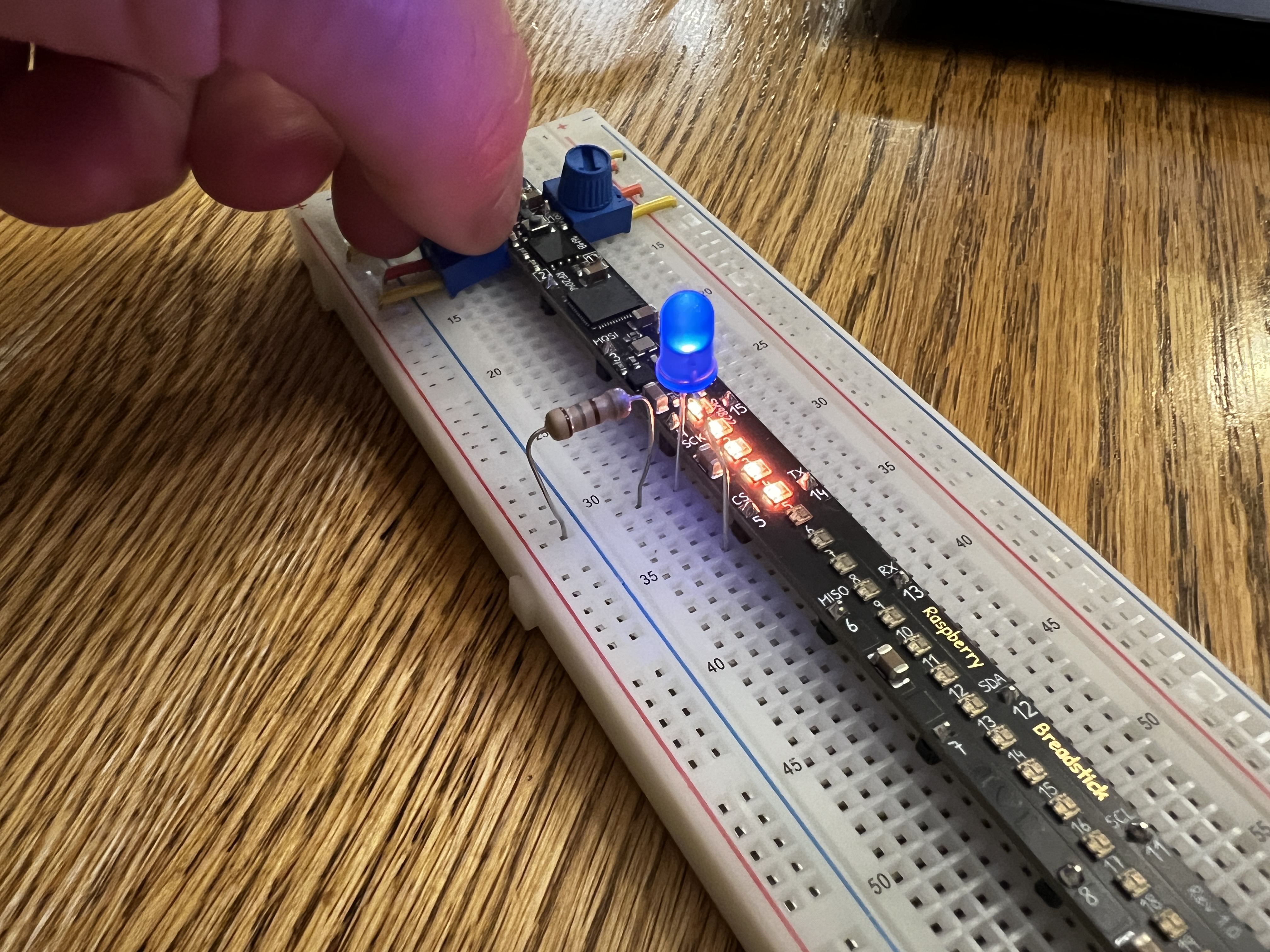
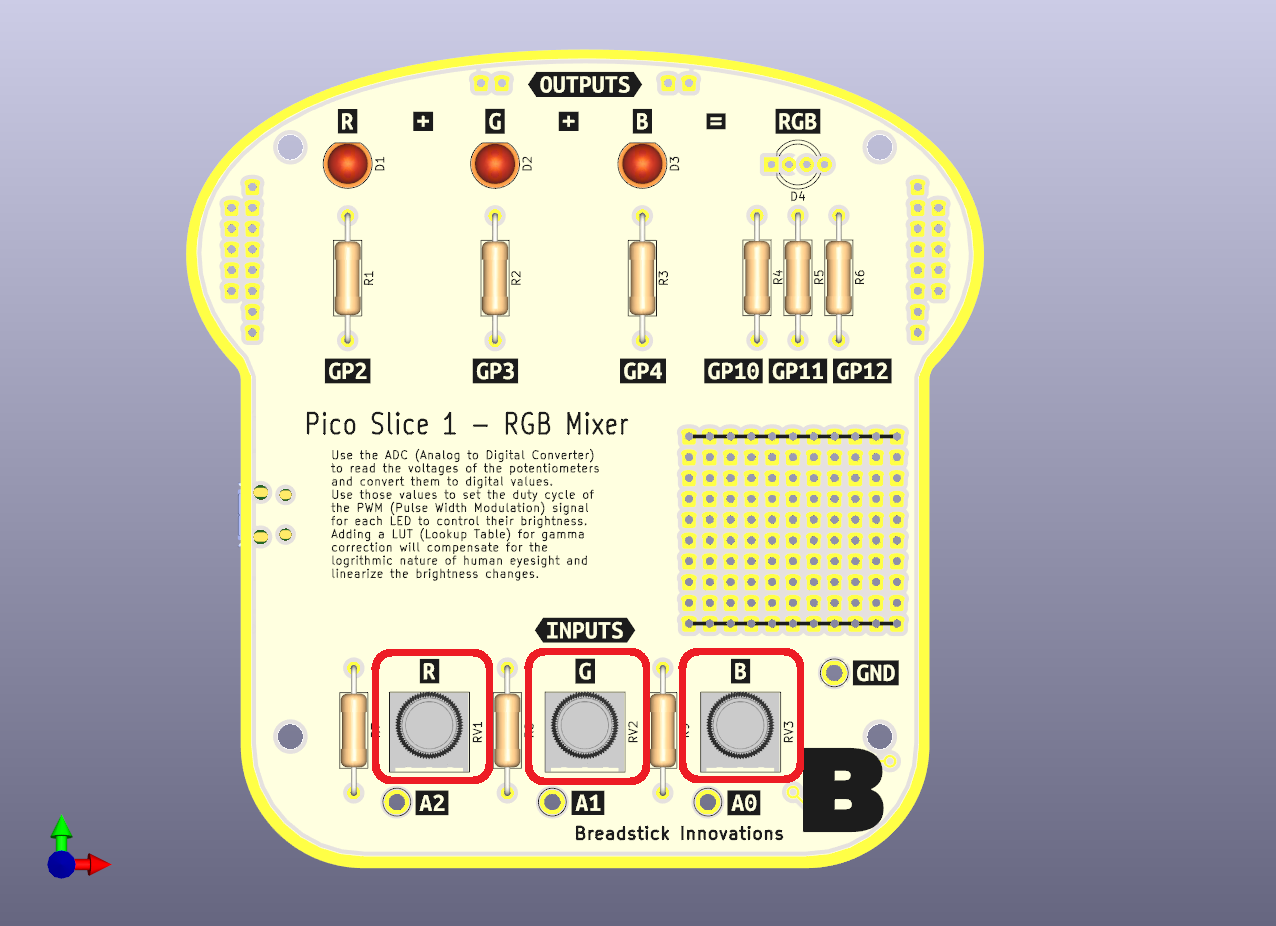
# Slice 1 - LED Mixer

<figure><img src="https://2808519483-files.gitbook.io/~/files/v0/b/gitbook-x-prod.appspot.com/o/spaces%2FI2jtNl20mw4WYRE8MWgw%2Fuploads%2FgBVEArNFbEw9K28w65tm%2FIMG_0002.JPG?alt=media&amp;token=003eb544-8871-40b1-8980-2039a8d28ae1" alt=""><figcaption></figcaption></figure>

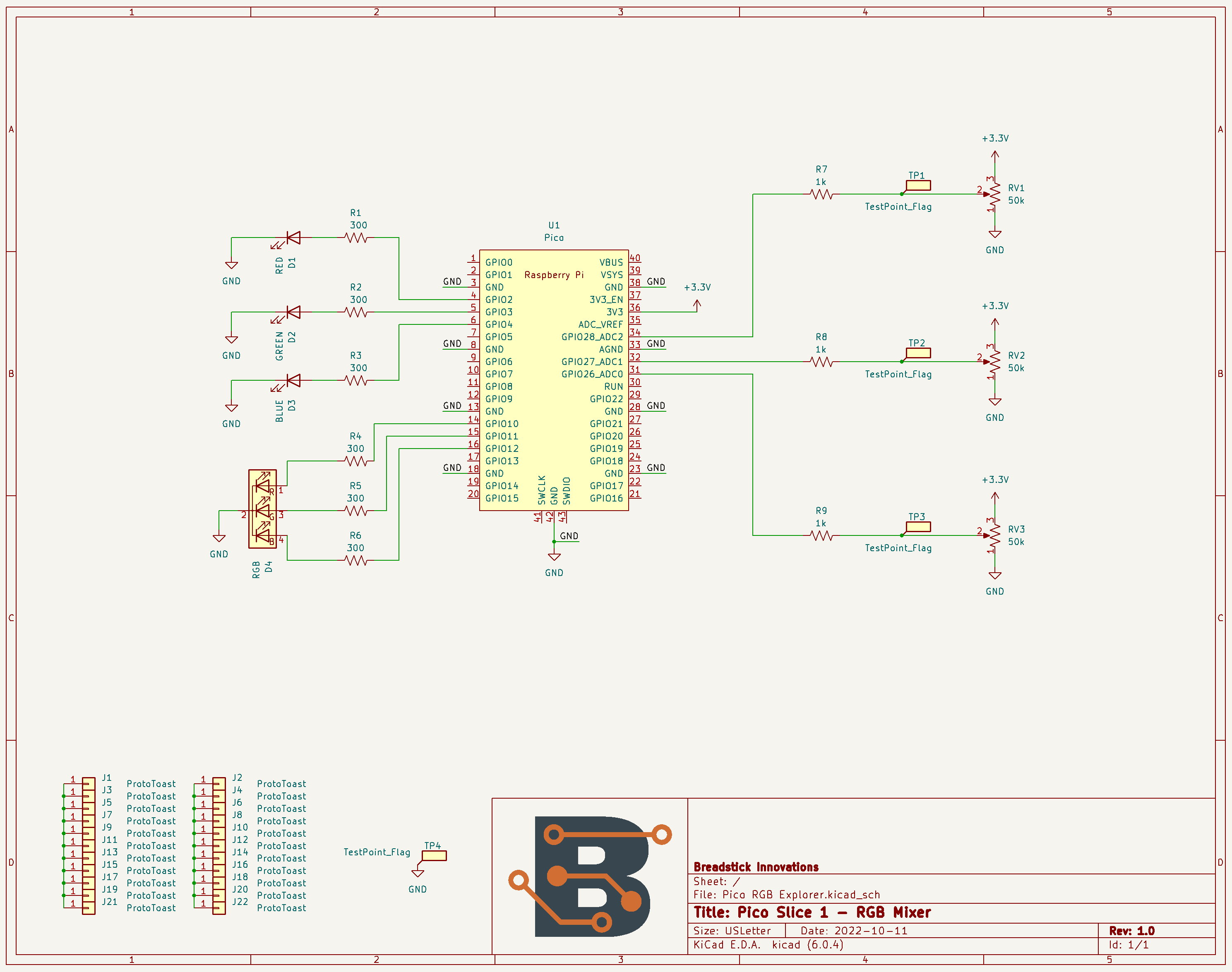
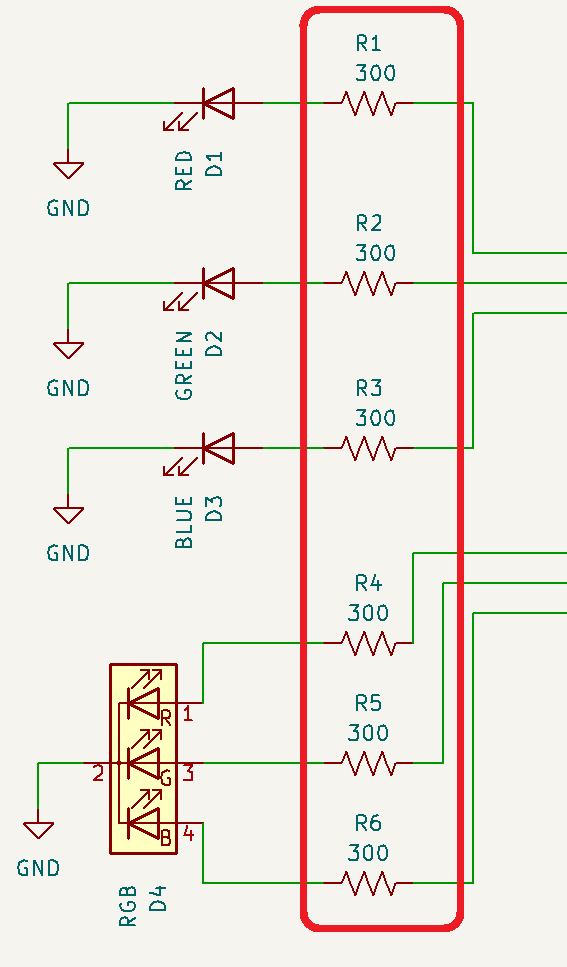
### Schematic

<figure><img src="https://2808519483-files.gitbook.io/~/files/v0/b/gitbook-x-prod.appspot.com/o/spaces%2FI2jtNl20mw4WYRE8MWgw%2Fuploads%2FXzGDdGxMAA9rDryAHxlI%2FSlice%201%20Schematic.png?alt=media&amp;token=908be101-2ba3-4c39-8576-064e17a199ca" alt=""><figcaption></figcaption></figure>


# Assembly Guide

Essentials are all here, more detail and images will be added soon!

### Interactive BOM

<https://breadstick-docs.pages.dev/S1/ibom>

### Component List

* 1x Raspberry Pi Pico
* 1x Pico Slice 1 PCB
* 6x 300Ω Resistors
* 1x Red LED
* 1x Green LED
* 1x Blue LED
* 1x RGB Common-Cathode LED
* 3x 1kΩ Resistors
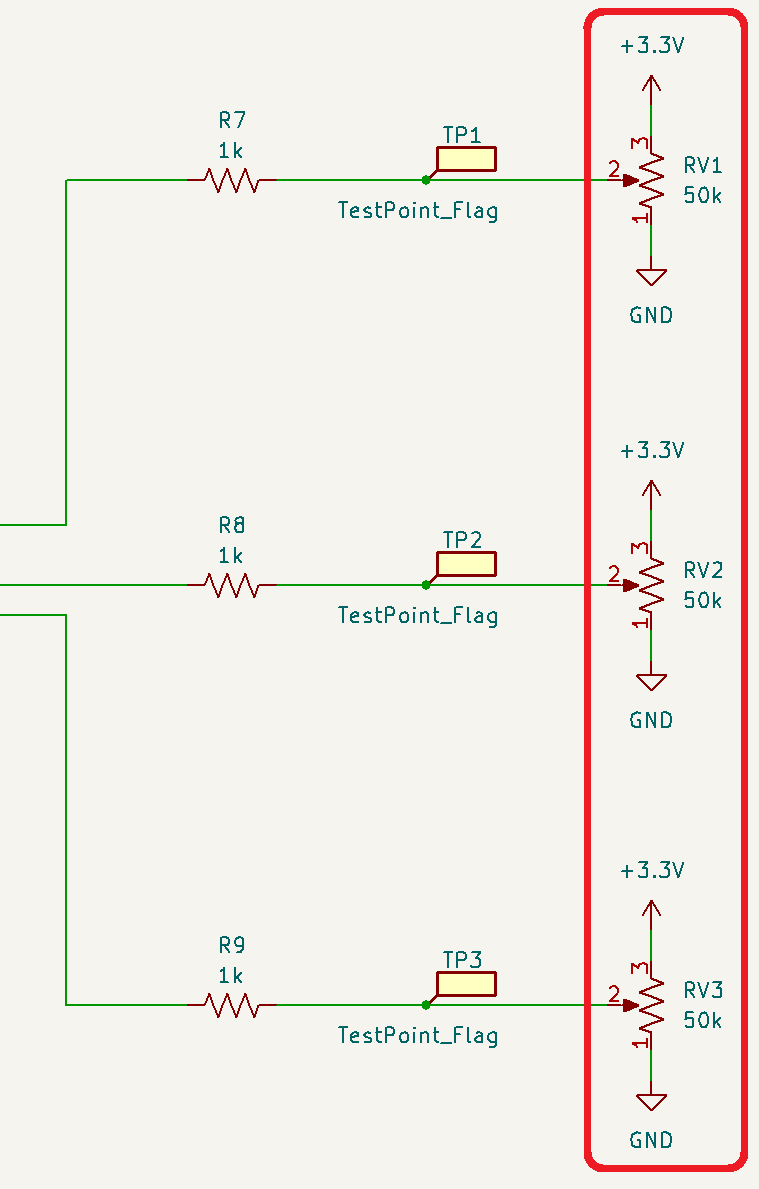
* 3x 50Ω Potentiometers
* 4x Standoffs

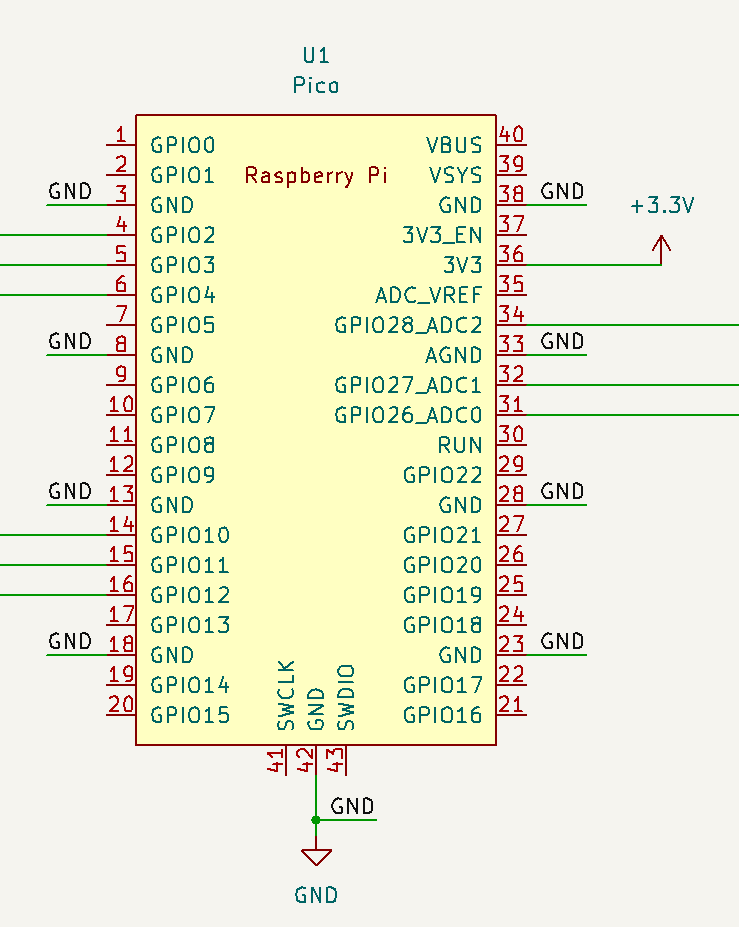
### Schematic

<figure><img src="https://2808519483-files.gitbook.io/~/files/v0/b/gitbook-x-prod.appspot.com/o/spaces%2FI2jtNl20mw4WYRE8MWgw%2Fuploads%2FGy1FlIjxi84EqBOXEYQz%2Fimage.png?alt=media&amp;token=b04263c3-c085-40e6-bea4-66bb25c9de66" alt=""><figcaption></figcaption></figure>

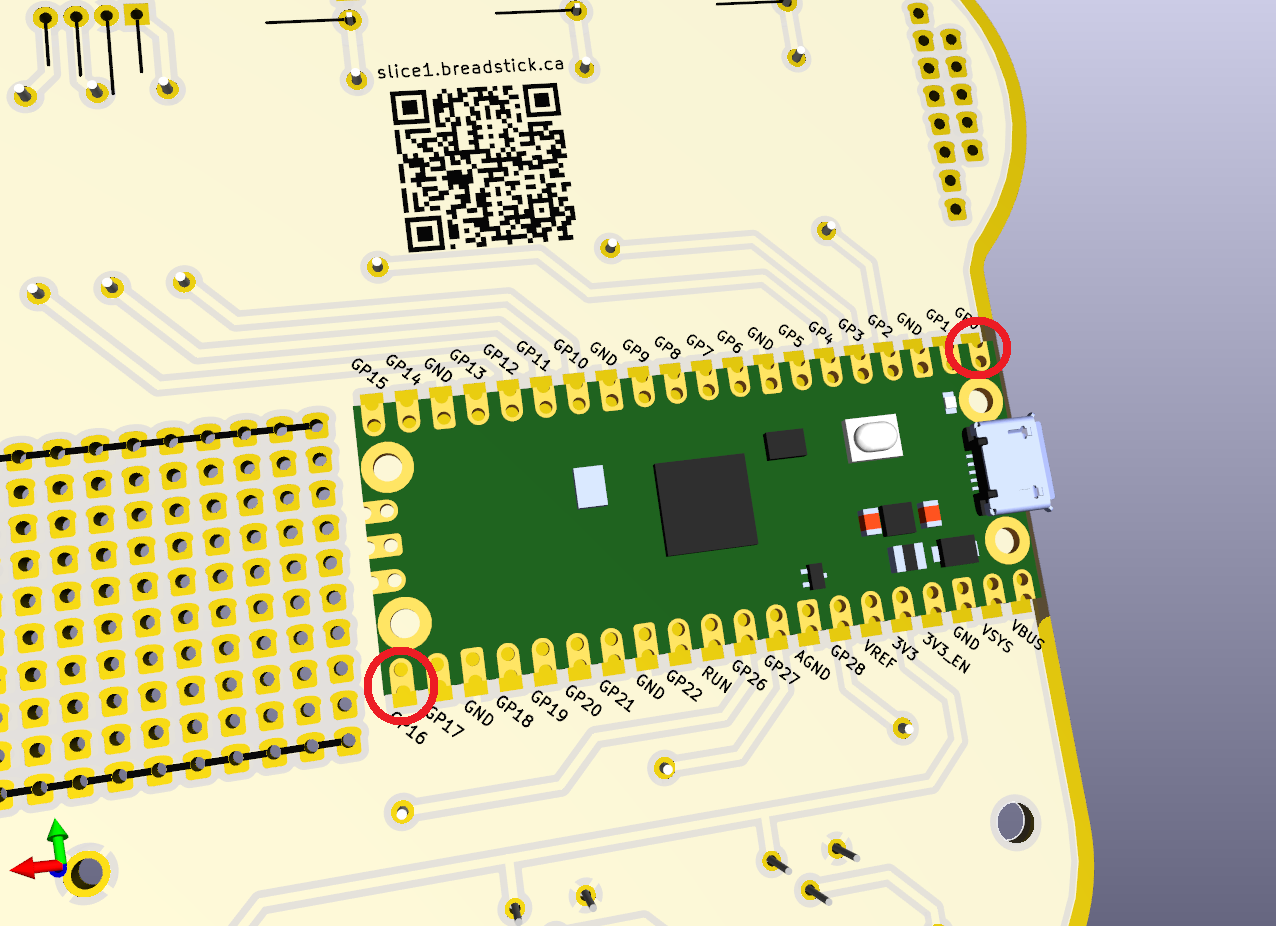
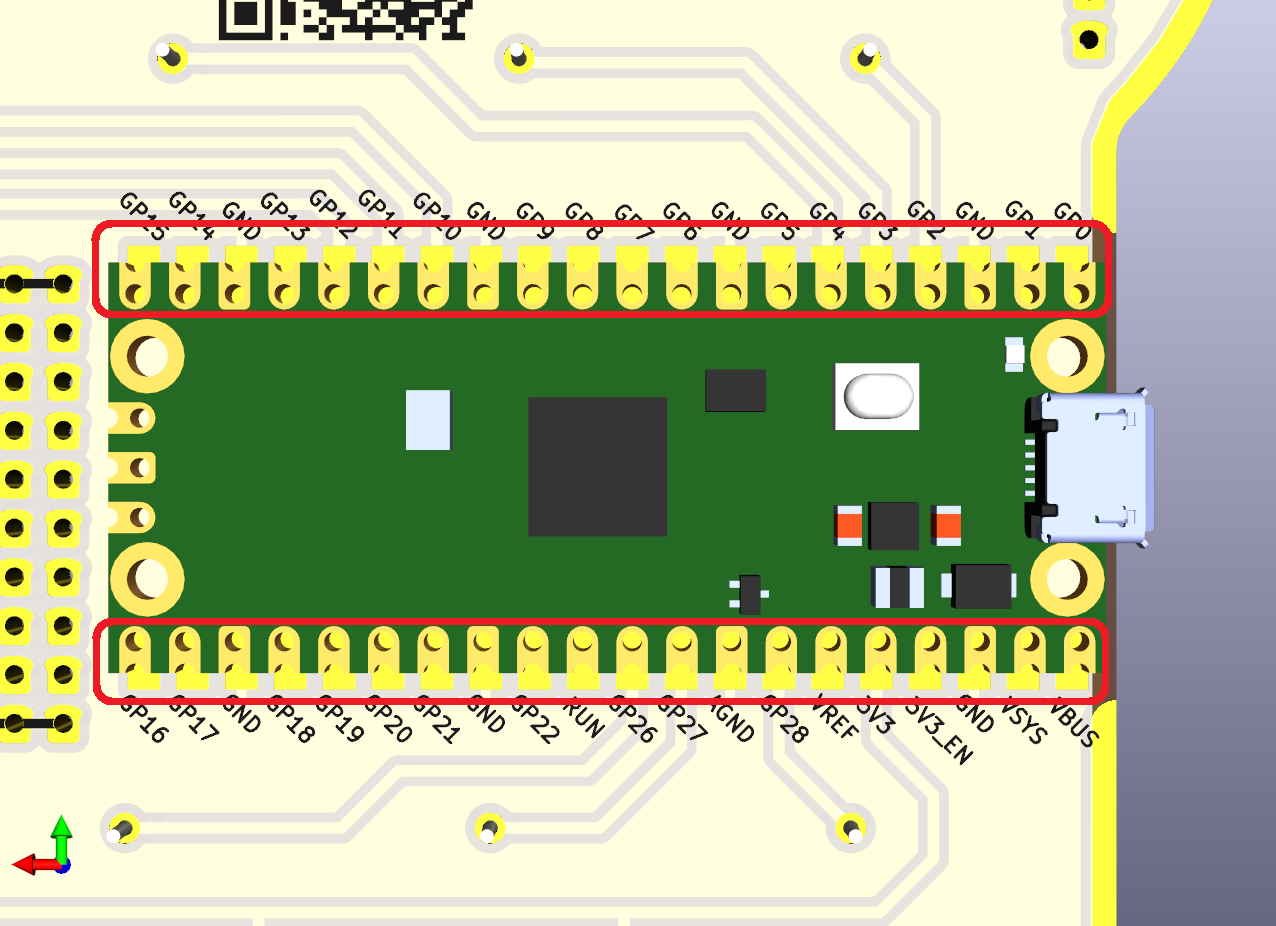
### 1. Pico

<figure><img src="https://2808519483-files.gitbook.io/~/files/v0/b/gitbook-x-prod.appspot.com/o/spaces%2FI2jtNl20mw4WYRE8MWgw%2Fuploads%2FdQLOTexQc3QD8M8szcvC%2Fimage.png?alt=media&amp;token=f2b3944c-cdd8-43e4-950a-4df9b678237a" alt=""><figcaption></figcaption></figure>

Position the Pico and tack in in place by soldering one of the corner pins. Make adjustments and lock it in place by soldering the opposing corner.

<figure><img src="https://2808519483-files.gitbook.io/~/files/v0/b/gitbook-x-prod.appspot.com/o/spaces%2FI2jtNl20mw4WYRE8MWgw%2Fuploads%2FI8EGVmVmTeaiqOAm55cK%2Fimage.png?alt=media&amp;token=4f4bcec3-85ca-4b8e-ae2f-b49fb9ce20e7" alt=""><figcaption></figcaption></figure>

Now that it's held in a good position, solder the rest of the pins.

<figure><img src="https://2808519483-files.gitbook.io/~/files/v0/b/gitbook-x-prod.appspot.com/o/spaces%2FI2jtNl20mw4WYRE8MWgw%2Fuploads%2Fj7SgpLB5gkLinFadoTkD%2Fimage.png?alt=media&amp;token=aefa6458-434c-46c7-b49a-8f70e7ab02cd" alt=""><figcaption></figcaption></figure>

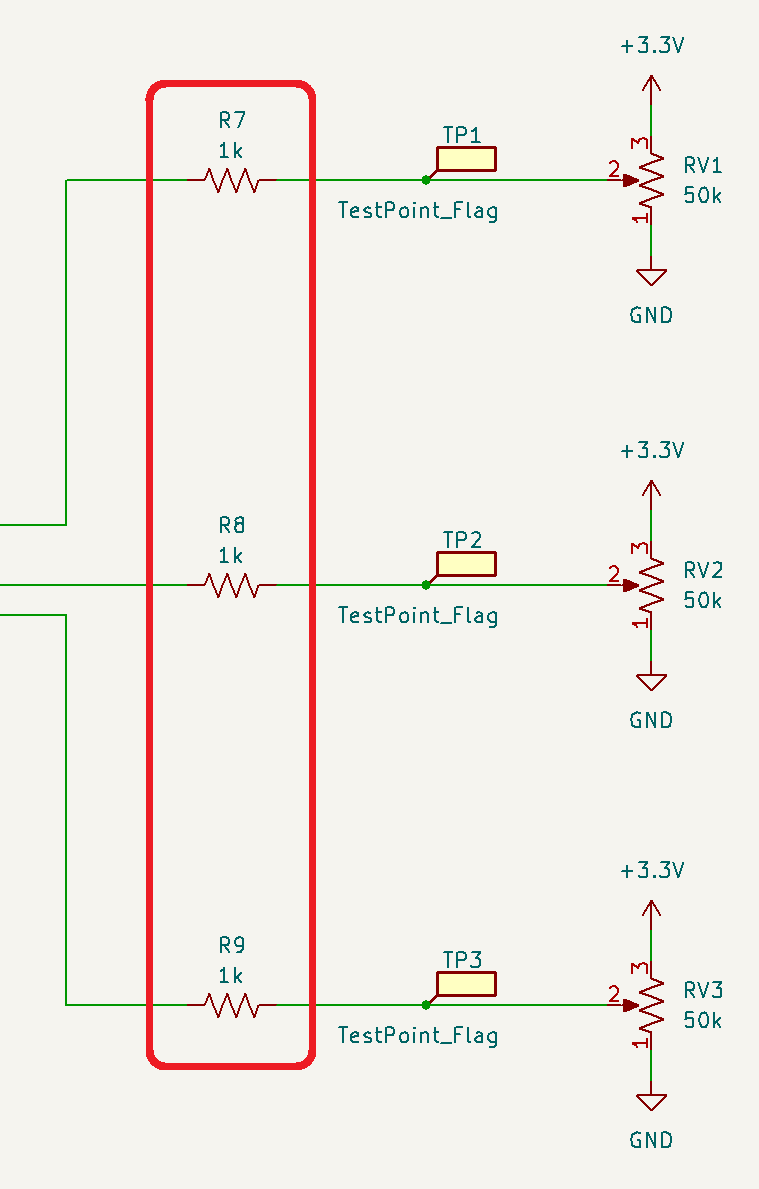
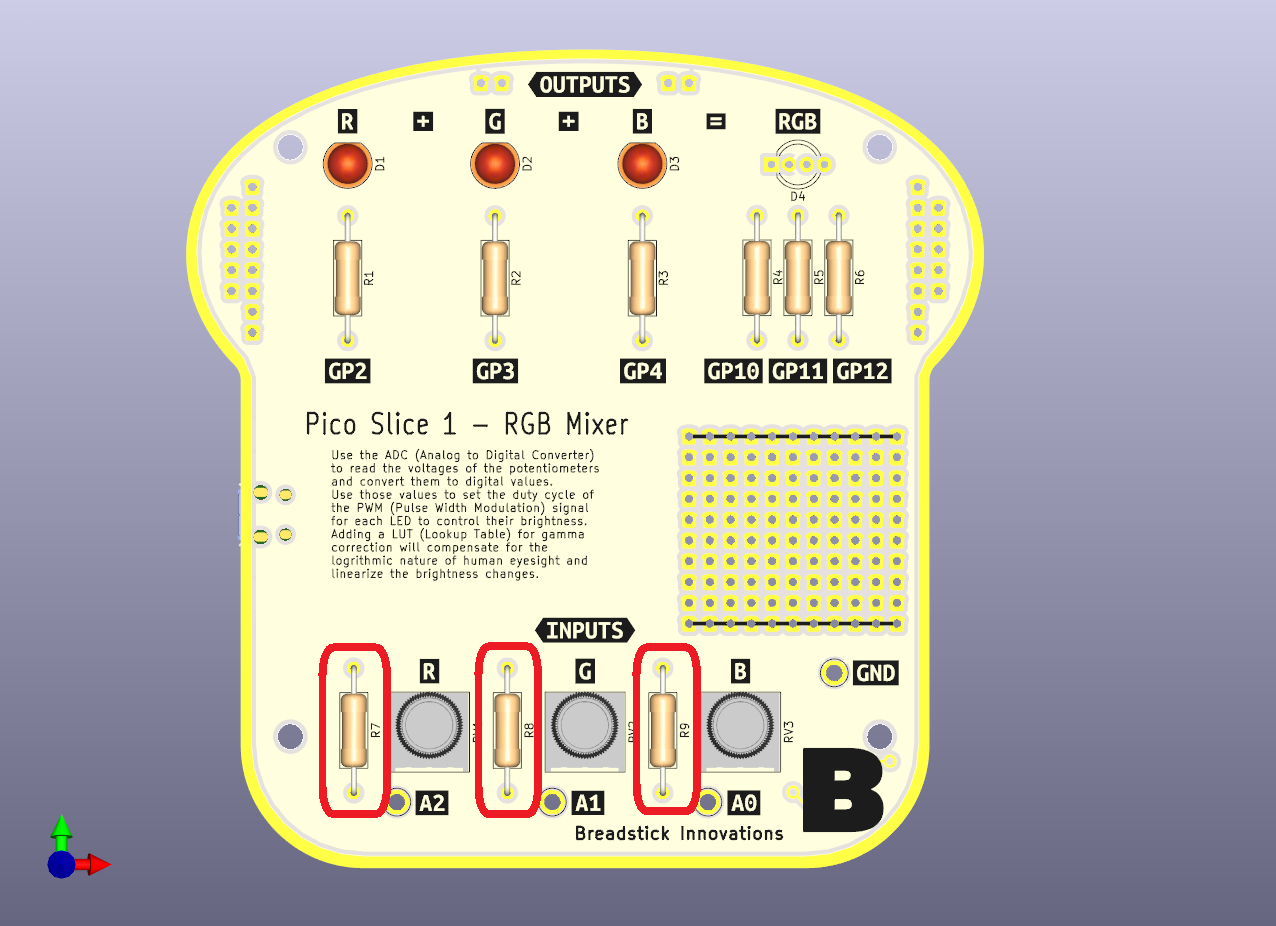
### 2. Potentiometer Protection Resistors

<figure><img src="https://2808519483-files.gitbook.io/~/files/v0/b/gitbook-x-prod.appspot.com/o/spaces%2FI2jtNl20mw4WYRE8MWgw%2Fuploads%2FgHEsAsX2rMyR1iSgRjfc%2Fimage.png?alt=media&amp;token=2f6295fc-9140-4bf3-9bb3-2849c8e089c1" alt=""><figcaption></figcaption></figure>

<figure><img src="https://2808519483-files.gitbook.io/~/files/v0/b/gitbook-x-prod.appspot.com/o/spaces%2FI2jtNl20mw4WYRE8MWgw%2Fuploads%2FekWep8PBfKvjmHja9e4B%2Fimage.png?alt=media&amp;token=5355d64f-b419-4419-bc9d-f21572108812" alt=""><figcaption></figcaption></figure>

### 3. Potentiometers

<figure><img src="https://2808519483-files.gitbook.io/~/files/v0/b/gitbook-x-prod.appspot.com/o/spaces%2FI2jtNl20mw4WYRE8MWgw%2Fuploads%2FS68RWcK5prB0SYe8zItr%2Fimage.png?alt=media&amp;token=02ec56fb-afe7-440d-b76a-c01320110a8e" alt=""><figcaption></figcaption></figure>

<figure><img src="https://2808519483-files.gitbook.io/~/files/v0/b/gitbook-x-prod.appspot.com/o/spaces%2FI2jtNl20mw4WYRE8MWgw%2Fuploads%2FBsRroifxkCWhCmqkbPty%2Fimage.png?alt=media&amp;token=b6eb0291-af1a-4906-97c8-939470af6ec8" alt=""><figcaption></figcaption></figure>

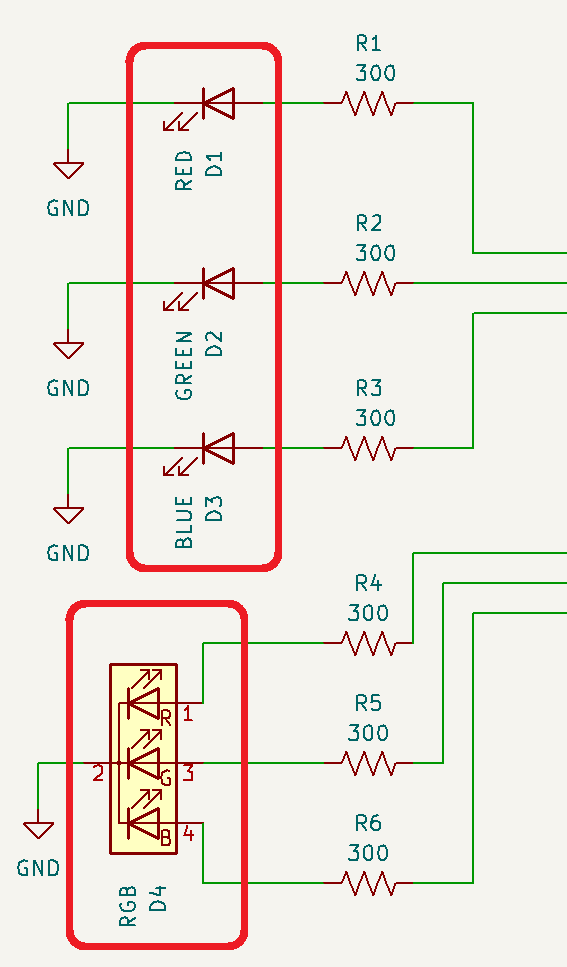
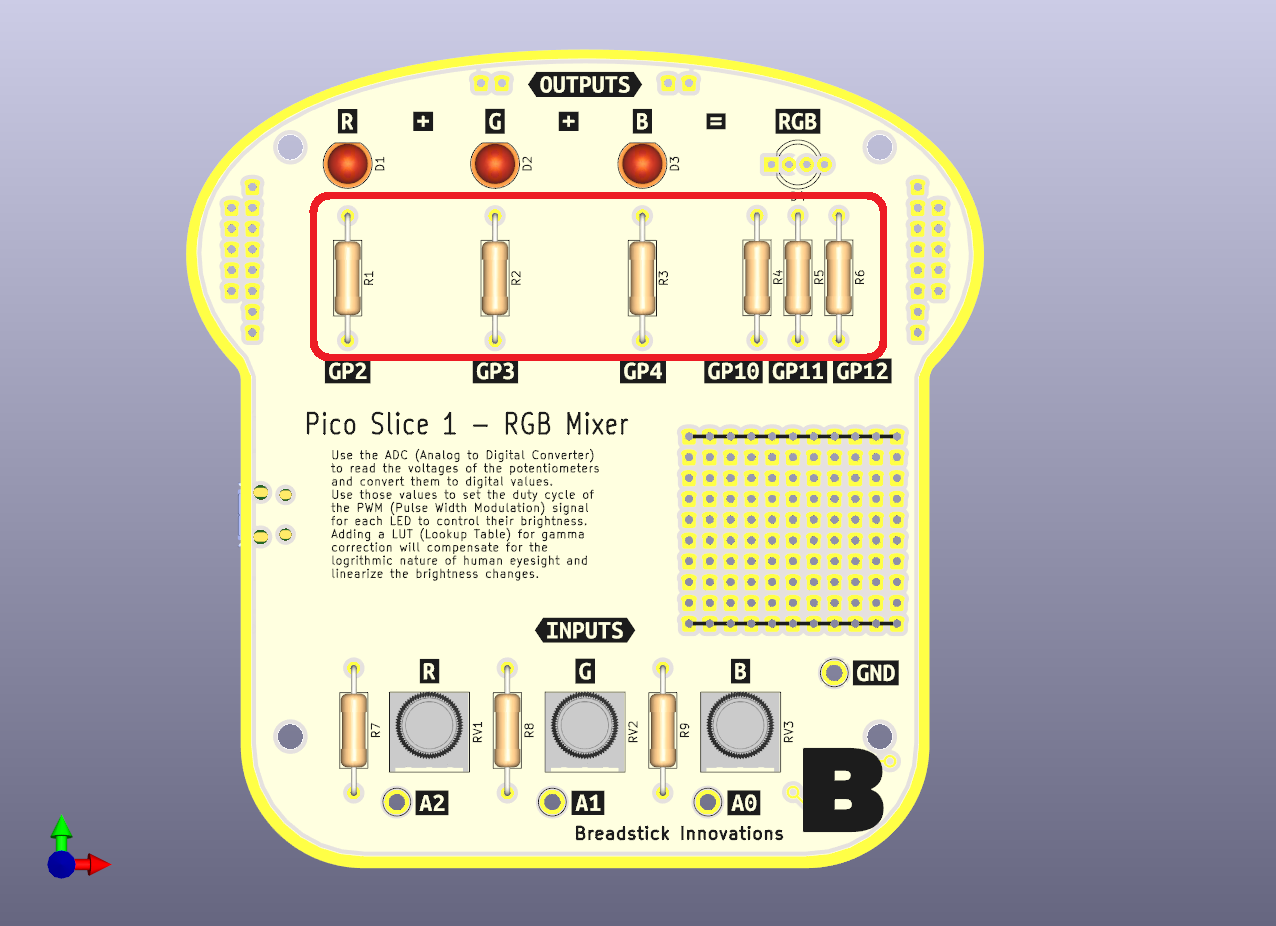
### 4. LED Current Limiting Resistors

<figure><img src="https://2808519483-files.gitbook.io/~/files/v0/b/gitbook-x-prod.appspot.com/o/spaces%2FI2jtNl20mw4WYRE8MWgw%2Fuploads%2FoUQ41l2sxRyPwMMOVpCO%2Fimage.png?alt=media&amp;token=6f96717e-a22d-4b33-b345-674ec1f9d2a3" alt=""><figcaption></figcaption></figure>

<figure><img src="https://2808519483-files.gitbook.io/~/files/v0/b/gitbook-x-prod.appspot.com/o/spaces%2FI2jtNl20mw4WYRE8MWgw%2Fuploads%2FiJtt7aeZoYly9NlS0Rwk%2Fimage.png?alt=media&amp;token=18ef7903-3805-4f7a-b322-0c18edf953ef" alt=""><figcaption></figcaption></figure>

### 5. LEDs

<figure><img src="https://2808519483-files.gitbook.io/~/files/v0/b/gitbook-x-prod.appspot.com/o/spaces%2FI2jtNl20mw4WYRE8MWgw%2Fuploads%2Fm3rXaYKZkNFudSUjJIeR%2Fimage.png?alt=media&amp;token=e04dc5a8-af69-4dec-97d3-2642329b91dd" alt=""><figcaption></figcaption></figure>

<figure><img src="https://2808519483-files.gitbook.io/~/files/v0/b/gitbook-x-prod.appspot.com/o/spaces%2FI2jtNl20mw4WYRE8MWgw%2Fuploads%2FRUXOgXaVmU0I0LHaT5I8%2Fimage.png?alt=media&amp;token=79214dde-94fe-4159-b14d-b5c6e7f7f857" alt=""><figcaption></figcaption></figure>


# CircuitPython Code

<figure><img src="https://2808519483-files.gitbook.io/~/files/v0/b/gitbook-x-prod.appspot.com/o/spaces%2FI2jtNl20mw4WYRE8MWgw%2Fuploads%2FgBVEArNFbEw9K28w65tm%2FIMG_0002.JPG?alt=media&amp;token=003eb544-8871-40b1-8980-2039a8d28ae1" alt=""><figcaption></figcaption></figure>

### Lessons

{% embed url="<https://learn.breadstick.ca/breadstick/breadloaf/slice-1-led-mixer/coding-lessons/1-blink>" %}

{% embed url="<https://learn.breadstick.ca/breadstick/breadloaf/slice-1-led-mixer/coding-lessons/2-analog-read-to-plotter>" %}

{% embed url="<https://learn.breadstick.ca/breadstick/breadloaf/slice-1-led-mixer/coding-lessons/3-pwm-fade>" %}

{% embed url="<https://learn.breadstick.ca/breadstick/breadloaf/slice-1-led-mixer/coding-lessons/4-pot-controlled-pwm>" %}

{% embed url="<https://learn.breadstick.ca/breadstick/breadloaf/slice-1-led-mixer/coding-lessons/5-gamma-correction>" %}

### Getting Started

{% embed url="<https://learn.breadstick.ca/breadstick/breadloaf/circuit-python-setup>" %}

{% embed url="<https://learn.breadstick.ca/breadstick/breadloaf/reset-bricked-pico>" %}


# 1 - Blink

Blink the Red LED

### Video

{% embed url="<https://youtu.be/r4IVEBA3ov0>" %}

### Code with Detailed Comments

```python
'''
Pico Slice 1 - RGB Mixer
Tutorial 1 - Blink
'''

# CircuitPython comes with a bunch of modules
# that makes programming microcontrollers easy!
# To get started, we're going to blink our red LED.

# First we import the modules we're going to use in our code

import time
import board
from digitalio import DigitalInOut, Direction, Pull

# To control our red LED, we need to create it in code as a DigitalInOut object.
# When we do, we specify which I/O pin to connect to.
# The board module we imported makes this really easy!
# If you check your Pico Slice, you'll see GP2 labeling the red LED,
# that's what you need to tell the board module to connect to the red LED!

red_led = DigitalInOut(board.GP2)

# red_led is now a DigitalInOut object with built-in attributes and functionality!
# By default, its pin direction attribute is set to input, but we'll have to change it
# to output in order to drive the LED.
# Naturally there's a built in method for doing so!

red_led.switch_to_output()

# Now that that it's an output, we can simply turn it on and off!
# Let's set up an endless while loop and to do that continuously.


while True:                     # Loop Forever:
    red_led.value = True            # Turn the red LED on
    time.sleep(0.5)                 # Do nothing for 0.5 seconds
    red_led.value = False           # Turn the red LED off
    time.sleep(0.5)                 # Do nothing for 0.5 seconds


```

### Just Code

```python
'''
Pico Slice 1 - RGB Mixer
Tutorial 1 - Blink
'''

import time
import board
from digitalio import DigitalInOut, Direction, Pull

red_led = DigitalInOut(board.GP2)
red_led.switch_to_output()

while True:
    red_led.value = True
    time.sleep(0.5)
    red_led.value = False
    time.sleep(0.5)


```

{% embed url="<https://twitter.com/breadstick_kits/status/1581855148636516353?s=20&t=muiqVzlVZwA9aPx9FlO8tQ>" %}
Blink in action
{% endembed %}


# 2 - Analog Read to Plotter

This code shows how you can read data from a potentiometer and send it to the computer, where you can see it appear in the serial console and plotter in Mu.

### Video

{% embed url="<https://youtu.be/4YrJU96EuUo>" %}

### Code with Detailed Comments

```python
'''
Pico Slice 1 - RGB Mixer
Tutorial 2 - Analog Read to Plotter
'''

# First we import the modules we're going to use in our code
import time
import board
from analogio import AnalogIn

# We'll represent the potentiometer in code as an AnalogIn object
# This makes it very easy to use the ADC to convert analog voltages to digital values
r_pot = AnalogIn(board.A2)

while True:                         # Loop Forever:
    analog_val = r_pot.value            # Read the analog value from r_pot's value attribute
    plotter_data = (analog_val,)        # The plotter expects Tuples (32,45,-21) and this is how we create 1 value tuple
    print(plotter_data)                 # Send tuple to the computer over USB, it'll automatically show up in the Serial and Chart 
    time.sleep(0.1)                     # Do nothing for 100 milliseconds
    
    print((r_pot.value,))               # Do the same thing as above, but in a single line of code
    time.sleep(0.1)  
```

### Just Code

```python
'''
Pico Slice 1 - RGB Mixer
Tutorial 2 - Analog Read to Plotter
'''

import time
import board
from analogio import AnalogIn

r_pot = AnalogIn(board.A2)

while True:                                    
    
    print((r_pot.value,))              
    time.sleep(0.1)  
```

### Additional Information

<https://codewith.mu/en/tutorials/1.1/plotter>


# 3 - PWM Fade

### Video

{% embed url="<https://youtu.be/8SnumUphBnY>" %}

### Code with Detailed Comments

```python
"""
Pico Slice 1 - RGB Mixer
Tutorial 3 - PWM Fade
"""

import time
import board
import pwmio

# This time we'll represent our red led in code as a PWMOut object from the pwmio module.
# This will give it the ability to have variable brightness, not just on or off.
# Brightness is controlled by the duty_cycle, a value from 0-65535 (2^16=65536).
# We'll start it at a duty_cycle of 0, so the LED will be off.
# The frequency will be set to 5000Hz or 5kHz, so we won't notice the blinking.
# We don't need to change the frequency of the flashes to control the brightness,
# so variable frequency can be set to False.

r_led = pwmio.PWMOut(board.GP2, duty_cycle=0, frequency=5000, variable_frequency=False)

while True:  # Loop Forever:
    for i in range(0, 65536, 50):   # i will count from 0 to 65535, in steps of 50
        r_led.duty_cycle = i        # set the duty cycle to the current value of i
        time.sleep(0.001)           # do nothing for 1 millisecond

    for i in range(65535, 0, -50):  # i will count from 35535 to 0, in steps of -50
        r_led.duty_cycle = i        # set the duty cycle to the current value of i
        time.sleep(0.001)           # do nothing for 1 millisecond
```

### Just Code

```python
"""
Pico Slice 1 - RGB Mixer
Tutorial 3 - PWM Fade
"""

import time
import board
import pwmio

r_led = pwmio.PWMOut(board.GP2, duty_cycle=0, frequency=5000, variable_frequency=False)

while True:
    for i in range(0, 65536, 50):
        r_led.duty_cycle = i
        time.sleep(0.001)

    for i in range(65535, 0, -50):
        r_led.duty_cycle = i
        time.sleep(0.001)
```


# 4 - Pot Controlled PWM

Use the analog value from a potentiometer to control the brightness of an LED.

### Video

{% embed url="<https://youtu.be/V-sHN9kBXNQ>" %}

### Code with Detailed Comments

```python
"""
Pico Slice 1 - RGB Mixer
Tutorial 4 - Pot Controlled PWM
"""

import time
import board
from pwmio import PWMOut
from analogio import AnalogIn


# Represent the Pot in code as an AnalogIn object.
r_pot = AnalogIn(board.A2)

# Represent the Red LED as a PWMOut object.
r_led = PWMOut(board.GP2, duty_cycle=0, frequency=5000, variable_frequency=False)


while True:  # Loop Forever:
    input_val = r_pot.value         # Read the potentiometer's current value (16-bit)
    r_led.duty_cycle = input_val    # Set the red LED's duty-cycle (16-bit) to the current potentiometer value
    print((input_val,))             # Send to computer as a tuple so it will show up in the plotter
    time.sleep(0.1)                 # Do nothing for 100 milliseconds

```

### Just Code

```python
"""
Pico Slice 1 - RGB Mixer
Tutorial 4 - Pot Controlled PWM
"""

import time
import board
from pwmio import PWMOut
from analogio import AnalogIn

r_pot = AnalogIn(board.A2)
r_led = PWMOut(board.GP2, duty_cycle=0, frequency=5000, variable_frequency=False)

while True:
    input_val = r_pot.value
    r_led.duty_cycle = input_val
    print((input_val,))
    time.sleep(0.1)

```


# 5 - Gamma Correction

Our eyes don't respond linearly, so we shouldn't increase our LED's brightness linearly. A little math goes a long way.

### Video

{% embed url="<https://youtu.be/YpCGXescnBw>" %}

### Gamma Correction

<figure><img src="https://2808519483-files.gitbook.io/~/files/v0/b/gitbook-x-prod.appspot.com/o/spaces%2FI2jtNl20mw4WYRE8MWgw%2Fuploads%2FikpTSfMKI9qwqntYaPVy%2Fimage.png?alt=media&amp;token=64ccb317-0b89-4a62-a176-b3633ee0710a" alt=""><figcaption><p><a href="https://learn.adafruit.com/led-tricks-gamma-correction">https://learn.adafruit.com/led-tricks-gamma-correction</a></p></figcaption></figure>

<figure><img src="https://2808519483-files.gitbook.io/~/files/v0/b/gitbook-x-prod.appspot.com/o/spaces%2FI2jtNl20mw4WYRE8MWgw%2Fuploads%2FTYwZ7rIgNsGJtGE9dkte%2Fimage.png?alt=media&amp;token=d9443641-5f86-4af6-94dc-7548d172bcba" alt=""><figcaption><p><a href="https://learn.adafruit.com/led-tricks-gamma-correction">https://learn.adafruit.com/led-tricks-gamma-correction</a></p></figcaption></figure>

### Code

```python
"""
Pico Slice 1 - RGB Mixer
Tutorial 5 - Gamma Correction
"""

import time
import board
from pwmio import PWMOut
from analogio import AnalogIn

# A funcion to handle gamma correction
def Gamma_Correct (linear_input):
    gamma = 3
    maximum = 65535
    output = int(((linear_input/maximum)**gamma)*maximum)
    return output

# Represent the Pot in code as an AnalogIn object.
r_pot = AnalogIn(board.A2)

# Represent the Red LED as a PWMOut object.
r_led = PWMOut(board.GP2, duty_cycle=0, frequency=5000, variable_frequency=False)


while True:                                     # Loop Forever:
    input_val = r_pot.value                         # Read the potentiometer's current value (16-bit)
    r_led.duty_cycle = Gamma_Correct(input_val)     # Set the red LED's duty-cycle (16-bit) to the gamma corrected pot value
    time.sleep(0.1)                                 # Do nothing for 100 milliseconds

```


# Slice 2 - Stopwatch

<figure><img src="https://2808519483-files.gitbook.io/~/files/v0/b/gitbook-x-prod.appspot.com/o/spaces%2FI2jtNl20mw4WYRE8MWgw%2Fuploads%2F4OHkASR1n88FnICM7D4t%2FSlice2frontsolderedwithbtncapsSquare.jpg?alt=media&amp;token=60f26212-8d88-4266-85cd-0ed94796193c" alt=""><figcaption></figcaption></figure>

### Schematic

<figure><img src="https://2808519483-files.gitbook.io/~/files/v0/b/gitbook-x-prod.appspot.com/o/spaces%2FI2jtNl20mw4WYRE8MWgw%2Fuploads%2FT9ddnO2m839Th2Wtvpyf%2FSlice%202%20Schematic.png?alt=media&amp;token=6c6fc275-c18f-443d-98bd-2f34e6400968" alt=""><figcaption></figcaption></figure>


# Assembly Guide

### Interactive BOM

<https://breadstick-docs.pages.dev/S2/ibom>

### Component List

* 1x Raspberry Pi Pico
* 1x Pico Slice 2 PCB
* 11x 300Ω Resistors
* 1x 4-Digit 7-Segment Display
* 1x TBD62083 Low-Side Switching IC
* 2x Buttons
* 1x 1kΩ Resistors
* 1x Piezo Buzzer
* 4x Standoffs


# Coding Lessons

<figure><img src="https://2808519483-files.gitbook.io/~/files/v0/b/gitbook-x-prod.appspot.com/o/spaces%2FI2jtNl20mw4WYRE8MWgw%2Fuploads%2F4OHkASR1n88FnICM7D4t%2FSlice2frontsolderedwithbtncapsSquare.jpg?alt=media&amp;token=60f26212-8d88-4266-85cd-0ed94796193c" alt=""><figcaption></figcaption></figure>

### Lessons

{% embed url="<https://learn.breadstick.ca/breadstick/breadloaf/slice-2-stopwatch/coding-lessons/1-7-segment-display-intro>" %}

{% embed url="<https://learn.breadstick.ca/breadstick/breadloaf/slice-2-stopwatch/coding-lessons/2-cycling-through-all-segments>" %}

### Getting Started

{% embed url="<https://learn.breadstick.ca/breadstick/breadloaf/circuit-python-setup>" %}

{% embed url="<https://learn.breadstick.ca/breadstick/breadloaf/reset-bricked-pico>" %}


# 1 - 7-Segment Display Intro

<figure><img src="https://2808519483-files.gitbook.io/~/files/v0/b/gitbook-x-prod.appspot.com/o/spaces%2FI2jtNl20mw4WYRE8MWgw%2Fuploads%2FzM5E9tTXoF23x2culgZh%2F7segment_multiplexing.gif?alt=media&amp;token=3d77fa91-6e15-4652-8c62-e5fa886eda64" alt=""><figcaption><p><a href="https://en.wikipedia.org/wiki/Seven-segment_display">https://en.wikipedia.org/wiki/Seven-segment_display</a></p></figcaption></figure>

### The 7-Segments

<figure><img src="https://2808519483-files.gitbook.io/~/files/v0/b/gitbook-x-prod.appspot.com/o/spaces%2FI2jtNl20mw4WYRE8MWgw%2Fuploads%2FJJzYsmOxhBsgaTUqmD95%2Fimage.png?alt=media&amp;token=5ffada51-6b35-449c-b469-61db0c730dbb" alt=""><figcaption><p><a href="https://en.wikipedia.org/wiki/Seven-segment_display">https://en.wikipedia.org/wiki/Seven-segment_display</a></p></figcaption></figure>

A, B, C, D, E, F, G - These comprise the 7 segments of a 7-Seg display. The decimal point isn't used in the creation of letters or shapes, which may be why it's not counted. So yes, technically their are 8 segments but these are referred to as 7-Seg displays.

<figure><img src="https://2808519483-files.gitbook.io/~/files/v0/b/gitbook-x-prod.appspot.com/o/spaces%2FI2jtNl20mw4WYRE8MWgw%2Fuploads%2FWMd9gAMnQ4q1o7vfpitX%2Fimage.png?alt=media&amp;token=d0410641-2241-4142-a179-4050b3d58f49" alt=""><figcaption><p><a href="https://en.wikipedia.org/wiki/Seven-segment_display">https://en.wikipedia.org/wiki/Seven-segment_display</a></p></figcaption></figure>

<figure><img src="https://2808519483-files.gitbook.io/~/files/v0/b/gitbook-x-prod.appspot.com/o/spaces%2FI2jtNl20mw4WYRE8MWgw%2Fuploads%2FNU40GJ1XxJMDG4OQo57M%2Fimage.png?alt=media&amp;token=1d28fb7e-1974-49c8-af8d-af152c22c3d7" alt=""><figcaption><p><a href="https://en.wikipedia.org/wiki/Seven-segment_display">https://en.wikipedia.org/wiki/Seven-segment_display</a></p></figcaption></figure>

By controlling which segments are active, you can display 0-9 and most letters of the alphabet.

### Common-Cathode / Common-Anode

<figure><img src="https://2808519483-files.gitbook.io/~/files/v0/b/gitbook-x-prod.appspot.com/o/spaces%2FI2jtNl20mw4WYRE8MWgw%2Fuploads%2F6Eiq12OmTmxKyX3RbMu6%2Fimage.png?alt=media&amp;token=d1eeaa5b-27ba-4613-8f96-8f16d236e737" alt=""><figcaption></figcaption></figure>

LEDs (Light Emitting Diodes) only allow current to pass in one direction, much like a check-valve. The arrow-shape of the LED symbol indicates which direction current is able to pass through it; entering through the anode and exiting through the cathode.

<figure><img src="https://2808519483-files.gitbook.io/~/files/v0/b/gitbook-x-prod.appspot.com/o/spaces%2FI2jtNl20mw4WYRE8MWgw%2Fuploads%2FZkSD4bHcLmWkxx7vC9Q3%2Fimage.png?alt=media&amp;token=f55cb2ac-aa3e-48ba-8869-f8a4be60dadf" alt=""><figcaption></figcaption></figure>

The cathodes of LEDs D1 and D2 are tied together, this is referred to as common-cathode. Switches SW1 and SW2 can be thought of as digital pins on our microcontroller; we have a limited number of them so we should strive to use as few of them as possible by finding clever ways to control lots of LEDs.

<figure><img src="https://2808519483-files.gitbook.io/~/files/v0/b/gitbook-x-prod.appspot.com/o/spaces%2FI2jtNl20mw4WYRE8MWgw%2Fuploads%2FqML8M3Mx0wIIpMsil8eq%2Fimage.png?alt=media&amp;token=e57ca392-4f3a-4102-8036-6157e2ef37ce" alt=""><figcaption></figcaption></figure>

Each digit in a 7-Segment display is wired as a common-cathode group.

<figure><img src="https://2808519483-files.gitbook.io/~/files/v0/b/gitbook-x-prod.appspot.com/o/spaces%2FI2jtNl20mw4WYRE8MWgw%2Fuploads%2Fa5YXspIloMwNaZJwQFp5%2Fimage.png?alt=media&amp;token=a7baedca-d088-4688-a681-1383d768b672" alt=""><figcaption></figcaption></figure>

Having a common-cathode doesn't mean much if you don't design your circuit to take advantage of it. Here's a design for a 4-digit 7-seg display but it requires 32 I/O pins and 32 resistors. Our Pico doesn't even have enough I/O pins to support this drive configuration.

<figure><img src="https://2808519483-files.gitbook.io/~/files/v0/b/gitbook-x-prod.appspot.com/o/spaces%2FI2jtNl20mw4WYRE8MWgw%2Fuploads%2F3DmI1Q85nNkKbm2MHtbP%2Fimage.png?alt=media&amp;token=6c898f2f-a36d-4d56-893d-d3465aeb66c8" alt=""><figcaption></figcaption></figure>

This is how you make the most of common-cathodes, you use them as a single point for making or breaking the connection to ground. This allows us to share the circuitry used for driving the anodes! Notice how all of the "A" LEDs have their anodes tied together? Each segment (e.g. A, B, C, etc.) are wired as common-anode and each digit is common-cathode! Now we're able to control all 32 LEDs with just 12 switches and only 8 resistors! You would be correct to point out that only 1 digit can be lit at a time but therein lies the clever thing we're going to do; if you cycle through each digit fast enough, your eyes will perceive them as all being lit at the same time!

<figure><img src="https://2808519483-files.gitbook.io/~/files/v0/b/gitbook-x-prod.appspot.com/o/spaces%2FI2jtNl20mw4WYRE8MWgw%2Fuploads%2FfR0nSmhkfwkwP61AfDNf%2Fimage.png?alt=media&amp;token=1c2a6204-1999-4b79-a013-3ef11b1913ce" alt=""><figcaption><p><a href="https://datasheet.lcsc.com/lcsc/2004281807_Shenzhen-Zhihao-Elec-FJ2481CH_C10707.pdf">https://datasheet.lcsc.com/lcsc/2004281807_Shenzhen-Zhihao-Elec-FJ2481CH_C10707.pdf</a></p></figcaption></figure>

This schematic is from the manufacturer datasheet, describing the internal wiring of our display.

<figure><img src="https://2808519483-files.gitbook.io/~/files/v0/b/gitbook-x-prod.appspot.com/o/spaces%2FI2jtNl20mw4WYRE8MWgw%2Fuploads%2FjfUQ3rXZrykkHJjrDkCF%2Fimage.png?alt=media&amp;token=c59e6af0-41b1-4543-9cee-2b8078a75312" alt=""><figcaption></figcaption></figure>

We opted to create a less complicated symbol to represent the display in our schematic.

### Interactive Falstad Simulation

{% embed url="<https://www.falstad.com/circuit/circuitjs.html?ctz=CQAgjCAMB0l3BWcMBMcUHYMGZIA4UA2ATmIxAUIosgoFMBaMMAKAGURCMUQVKLiPPlVoQAZgEMANgGc6UXiwDmAod1W88eBZBYAlDSgAstBIN74dIE9Vp3oCFgHdO64SAx4jvfthYAnDy8fKi9td1pcXUDPb2xCbTCQeO1IuGdXHhSguITk-Q1sBB4zLLQrGyQ7KAdlQuDS6zgddkzkvMbs6slZeVoUFjBCHmJCWhNaUfGjcJAAEzpJAFcpABcGKTo58CsYSFYhnjxRptpjqiMZ3nnFiRX1ze2Iar3WF3PrK8FtS9SMqc+2m+gKg-xQPy+4OsJ10MhAwKMJ2BlBeIB6cjqyLG8KhjTsGQ+7g+E1BAA9OIRvMZyAl+ghxrxvABBFjkwiU9q0WntbDWRkgABCrJAeEISCM2F5WggEou-JZ5MExGs2G8xCM4uw5Cp3iF5LAkBwKu8BuOKu1-L1yEgyolvINfBVcuMIBZLgNNncHvGzV0KgN6hRyED5nxcIDPERVAjFGxojR0gx7sNkauMajoPdHpB6auumTNl+wdTf0OyELzW9IJ4C2Waw2Wx2L1gB2G4GzJOYkG8RZrt3uDaeuxbBKuRJOEQJE-4Vcn7yu2QBXX+2JJS7y+fb3dOW9yfxc6+0Xb3ZJFiIoqvhYG0CC1fJdABEAJZKJ-rViK4imIrIMwXn78s+r7rAM5IIMEYDgcg2BHoQMr8gAwlIT4AMYANYADoyAA9gAdlhqwABZ0FhMhOG+KHETIBHYVhlESLhSgkTIRF0E+-ikasEirHQ0AsEAA>" %}
Click on the link to launch the interactive in-browser simulation.
{% endembed %}

<figure><img src="https://2808519483-files.gitbook.io/~/files/v0/b/gitbook-x-prod.appspot.com/o/spaces%2FI2jtNl20mw4WYRE8MWgw%2Fuploads%2FHWrelhOoXi89H7QxXM0b%2Fimage.png?alt=media&amp;token=db60aaa2-6570-4a47-975a-1cdb95099ec8" alt=""><figcaption><p>Click on the link above to launch this interactive in-browser simulation. Open and close switches to control the LEDs.</p></figcaption></figure>

### Writing the Code

<figure><img src="https://2808519483-files.gitbook.io/~/files/v0/b/gitbook-x-prod.appspot.com/o/spaces%2FI2jtNl20mw4WYRE8MWgw%2Fuploads%2FvNYrbo9Grkp4j9V9Q2aS%2Fimage.png?alt=media&amp;token=9e75db73-d591-4e46-8321-d43b9eb399c3" alt=""><figcaption></figcaption></figure>

You won't need to look at the schematic to start programming. We've labeled which GPIO (General Purpose I/O) pins are connected to each segment and peripheral.

<figure><img src="https://2808519483-files.gitbook.io/~/files/v0/b/gitbook-x-prod.appspot.com/o/spaces%2FI2jtNl20mw4WYRE8MWgw%2Fuploads%2F44dL6yTM2rV55sZwgF2H%2Fimage.png?alt=media&amp;token=f1638b8d-ae9e-481d-bbcf-3838178eb06d" alt=""><figcaption></figcaption></figure>

Let's start with something simple. We're going to light up the 'A' segment and cycle through each digit, one at a time.

<figure><img src="https://2808519483-files.gitbook.io/~/files/v0/b/gitbook-x-prod.appspot.com/o/spaces%2FI2jtNl20mw4WYRE8MWgw%2Fuploads%2Fbn2MXBU1k6X467iIEJBe%2Fimage.png?alt=media&amp;token=c187d360-b636-4429-86be-a306d2eb1801" alt=""><figcaption></figcaption></figure>

Since we're just simply turning things on and off, we'll use DigitalInOut objects. We'll name our object 'A' and connect it to GP10 by using the board module.

<figure><img src="https://2808519483-files.gitbook.io/~/files/v0/b/gitbook-x-prod.appspot.com/o/spaces%2FI2jtNl20mw4WYRE8MWgw%2Fuploads%2FeeSWLabultokae07KNqK%2Fimage.png?alt=media&amp;token=27b1c41e-edad-4c42-924b-950f37a0d93e" alt=""><figcaption></figcaption></figure>

We'll have to do the same for each digit. The IC (DIP Chip) we see here is responsible for connecting the common-cathode of each digit to ground. When we set GP6 to HIGH, DIG1 (Digit 1) gets connected to ground. We only ever want one digit activated at a time.

<figure><img src="https://2808519483-files.gitbook.io/~/files/v0/b/gitbook-x-prod.appspot.com/o/spaces%2FI2jtNl20mw4WYRE8MWgw%2Fuploads%2FQoK0W1MWGPm8BQGLYqDL%2Fimage.png?alt=media&amp;token=2da602c0-df38-4d01-9a42-7f97d914a002" alt=""><figcaption></figcaption></figure>

By default, our DigitalInOut objects are inputs. We need to tell them to become outputs if we want to turn them on or off, set them as True or False, 1 or 0, 3.3V or Gnd. Because they are DigitalInOut objects they have a built in method called switch\_to\_output() that makes this really easy.

<figure><img src="https://2808519483-files.gitbook.io/~/files/v0/b/gitbook-x-prod.appspot.com/o/spaces%2FI2jtNl20mw4WYRE8MWgw%2Fuploads%2FMTvPMmQb9rqbImmIuJLz%2Fimage.png?alt=media&amp;token=6c7d0f9e-2d40-4ff9-aeba-8099cd59d872" alt=""><figcaption></figcaption></figure>

With the initial setup out of the way, we can set 'A' to 3.3V by writing True to A's value attribute. Now the the anode of every 'A' segment is connected to 3.3V, but none of them will light up because none of the digits have a path to ground yet.

<figure><img src="https://2808519483-files.gitbook.io/~/files/v0/b/gitbook-x-prod.appspot.com/o/spaces%2FI2jtNl20mw4WYRE8MWgw%2Fuploads%2FCuRCbYjh0gIyTFrrfyuu%2Fimage.png?alt=media&amp;token=d030f596-a540-49a7-899e-71cc67669371" alt=""><figcaption></figcaption></figure>

We'll create a while loop that runs forever and we'll have it turn each digit on sequentially, one at a time.

<figure><img src="https://2808519483-files.gitbook.io/~/files/v0/b/gitbook-x-prod.appspot.com/o/spaces%2FI2jtNl20mw4WYRE8MWgw%2Fuploads%2FLzeE1UK3BUHOi08PCytc%2Fphoto_2022-11-04_11-36-29.jpg?alt=media&amp;token=816a33ae-8ee6-4491-9e4a-4b36b0a39463" alt=""><figcaption></figcaption></figure>

...wait a sec, they're all on at the same time? Well, not actually; we forgot to put any delays in our code so our microcontroller is cycling through each digit so quickly that our eyes, and the camera in the case, perceive every digit as being lit simultaneously.

<figure><img src="https://2808519483-files.gitbook.io/~/files/v0/b/gitbook-x-prod.appspot.com/o/spaces%2FI2jtNl20mw4WYRE8MWgw%2Fuploads%2FaGrVPKXpXlo9Pvc6ulyr%2Fimage.png?alt=media&amp;token=69e145cb-a20d-41b9-8ddf-a1e026a4f8ae" alt=""><figcaption></figcaption></figure>

In order to use delays, we need to import the time module.

<figure><img src="https://2808519483-files.gitbook.io/~/files/v0/b/gitbook-x-prod.appspot.com/o/spaces%2FI2jtNl20mw4WYRE8MWgw%2Fuploads%2FyHb9YMrBqqzpGitIMdht%2Fimage.png?alt=media&amp;token=a84da7b9-6d0a-4b26-a262-cedb35f03cf4" alt=""><figcaption></figcaption></figure>

Now we can use the sleep method from the time module to tell our microcontroller to do nothing for 0.5 seconds after activating each digit.

### Video

{% embed url="<https://youtu.be/Ocg-r_0CXaM>" %}

### Code

```python
import board
from digitalio import DigitalInOut
import time


A = DigitalInOut(board.GP10)
A.switch_to_output()

D1 = DigitalInOut(board.GP6)
D1.switch_to_output()

D2 = DigitalInOut(board.GP7)
D2.switch_to_output()

D3 = DigitalInOut(board.GP8)
D3.switch_to_output()

D4 = DigitalInOut(board.GP9)
D4.switch_to_output()


A.value = True

while True:
    D1.value = True
    time.sleep(0.5)
    D1.value = False
    
    D2.value = True
    time.sleep(0.5)
    D2.value = False
    
    D3.value = True
    time.sleep(0.5)
    D3.value = False
    
    D4.value = True
    time.sleep(0.5)
    D4.value = False

```


# 2 - Cycling Through All Segments

### Video

{% embed url="<https://youtu.be/RQaOa9D5hpA>" %}

### Writing the Code

<figure><img src="https://2808519483-files.gitbook.io/~/files/v0/b/gitbook-x-prod.appspot.com/o/spaces%2FI2jtNl20mw4WYRE8MWgw%2Fuploads%2FvTQhx16pCJZrVYjuDiGQ%2Fimage.png?alt=media&amp;token=793b7265-691e-4148-91f5-4322f00a1e3a" alt=""><figcaption></figcaption></figure>

Start by importing modules and objects we'll be using.

<figure><img src="https://2808519483-files.gitbook.io/~/files/v0/b/gitbook-x-prod.appspot.com/o/spaces%2FI2jtNl20mw4WYRE8MWgw%2Fuploads%2Fm40ewfRDL1OjkPQKJqOD%2Fimage.png?alt=media&amp;token=250ced5d-1a07-473e-9962-d83b26dfd8b9" alt=""><figcaption></figcaption></figure>

Create a DigitalInOut object for each of the I/O pins we need to control. By default they all start off as inputs but we need to make them outputs if we're going to send signals with them. We could do this line-by-line by using each object's switch\_to\_output() method, but there's faster to get this done and set us up for easier control later on.

<figure><img src="https://2808519483-files.gitbook.io/~/files/v0/b/gitbook-x-prod.appspot.com/o/spaces%2FI2jtNl20mw4WYRE8MWgw%2Fuploads%2FHD21Y87ujT14QSeyQ0n7%2Fimage.png?alt=media&amp;token=9770e251-0296-4128-b022-5947ac6dd719" alt=""><figcaption></figcaption></figure>

We're going to create two lists, one for segments and one for digits. This will make it easy to iterate over the objects in the list using for-loops!

<figure><img src="https://2808519483-files.gitbook.io/~/files/v0/b/gitbook-x-prod.appspot.com/o/spaces%2FI2jtNl20mw4WYRE8MWgw%2Fuploads%2FszGoN0a2UlynCxBvajwK%2Fimage.png?alt=media&amp;token=be66db81-6a40-4716-a16c-1792bfa5e469" alt=""><figcaption></figcaption></figure>

These for-loops let us run the .switch\_to\_output() method for each of the objects in the list. Now all our segments and digits are ready to be used as outputs.

<figure><img src="https://2808519483-files.gitbook.io/~/files/v0/b/gitbook-x-prod.appspot.com/o/spaces%2FI2jtNl20mw4WYRE8MWgw%2Fuploads%2FPbvkSJkeOqh1MWJkOa35%2Fimage.png?alt=media&amp;token=b62b719b-d810-462c-8cfa-c5f94c825e29" alt=""><figcaption></figcaption></figure>

Now that our setup is done, we'll write a while-loop that runs forever.

<figure><img src="https://2808519483-files.gitbook.io/~/files/v0/b/gitbook-x-prod.appspot.com/o/spaces%2FI2jtNl20mw4WYRE8MWgw%2Fuploads%2FHw2YSswc20ZyNtFDnrNu%2Fimage.png?alt=media&amp;token=099ecce5-1058-47f3-bb1b-375357fb6b23" alt=""><figcaption></figcaption></figure>

We know we can only have one digit active at a time, so we'll make a for-loop that iterates over the list of digits, activates the current digit, then deactivates it, and so on and so forth for each digit, forever.&#x20;

<figure><img src="https://2808519483-files.gitbook.io/~/files/v0/b/gitbook-x-prod.appspot.com/o/spaces%2FI2jtNl20mw4WYRE8MWgw%2Fuploads%2FFYxHy0C48OUsJGOpTnkK%2Fimage.png?alt=media&amp;token=7675158a-be83-457e-809c-7a0e46d6dbb8" alt=""><figcaption></figcaption></figure>

Next we'll create a for-loop that iterates through our entire list of segments, each time we activate a new digit. Placing a loop within a loop is known as 'nesting'. Here we've created nested-for-loops. This inner loop is where we need to put our delay, otherwise it would cycle through every segment so quickly it would appear as though they're all on at the same time. We have 9 segments and 4 digits, each being shown for 0.1 seconds, so it should take 3.6 seconds to complete the entire cycle.

### Code

```python
import board
from digitalio import DigitalInOut
import time

# Create DigitalInOut objects for each segment
A = DigitalInOut(board.GP10)
B = DigitalInOut(board.GP14)
C = DigitalInOut(board.GP5)
D = DigitalInOut(board.GP2)
E = DigitalInOut(board.GP4)
F = DigitalInOut(board.GP11)
G = DigitalInOut(board.GP13)
DP = DigitalInOut(board.GP3)   # Decimal Point
COL = DigitalInOut(board.GP12)  # Colon

# Create DigitalInOut objects for each digit
D1 = DigitalInOut(board.GP6)
D2 = DigitalInOut(board.GP7)
D3 = DigitalInOut(board.GP8)
D4 = DigitalInOut(board.GP9)

# Create a list containing all the segments
segments = [A,B,C,D,E,F,G,DP,COL]

# Create a list containing all the digits
digits = [D1,D2,D3,D4]

# Set all the segments as outputs
for seg in segments:
    seg.switch_to_output()
    
# Set all digits as outputs
for dig in digits:
    dig.switch_to_output()
    

while True:                 # Loop Forever:
    for dig in digits:          # Iterate through all digits:
        dig.value = True            # Activate the current digit
        for seg in segments:        # Iterate through all segments:
            seg.value = True            # Activate the current segment
            time.sleep(0.1)             # Do nothing for 0.1 seconds
            seg.value = False           # Deactivate the current segment
        dig.value = False           # Deactivate the current digit

```


# Slice 3 - 8x8 Dot Matrix

<figure><img src="https://2808519483-files.gitbook.io/~/files/v0/b/gitbook-x-prod.appspot.com/o/spaces%2FI2jtNl20mw4WYRE8MWgw%2Fuploads%2Fzw603IRUUCvD05gTTjIb%2FIMG_0002.jpg?alt=media&amp;token=4fd97169-faa5-42bb-a926-d8374aebff44" alt=""><figcaption></figcaption></figure>

### Schematic

<figure><img src="https://2808519483-files.gitbook.io/~/files/v0/b/gitbook-x-prod.appspot.com/o/spaces%2FI2jtNl20mw4WYRE8MWgw%2Fuploads%2FiymRmz290GUjqMM73rR4%2FSlice%203%20Schematic.png?alt=media&amp;token=0d5fb6f7-b1af-4d87-af04-56930bd18f67" alt=""><figcaption></figcaption></figure>


# Assembly Guide

### Interactive BOM

<https://breadstick-docs.pages.dev/S3/ibom>

### Component List

* 1x Raspberry Pi Pico
* 1x Pico Slice 3 PCB
* 13x 300Ω Resistors
* 1x 8x8 LED Matrix
* 1x TBD62083 Low-Side Switching IC
* 4x Buttons
* 1x 1kΩ Resistors
* 1x Piezo Buzzer
* 1x NPN Bipolar Junction Transistor
* 4x Standoffs


# MicroPython Code

<figure><img src="https://2808519483-files.gitbook.io/~/files/v0/b/gitbook-x-prod.appspot.com/o/spaces%2FI2jtNl20mw4WYRE8MWgw%2Fuploads%2FPTmFpWSX9oPlJYyfGGdy%2Fimage.png?alt=media&amp;token=58bdbbc1-ba0c-4d5c-9f99-63b4c4a3b88e" alt=""><figcaption></figcaption></figure>

## MicroPython

MicroPython lets us use both cores of our Pico at the same time, which means we can dedicate one of them to continually updating the display in the background. We can use the other code to run our game logic.

<figure><img src="https://2808519483-files.gitbook.io/~/files/v0/b/gitbook-x-prod.appspot.com/o/spaces%2FI2jtNl20mw4WYRE8MWgw%2Fuploads%2FNgjSzuruPdqvg4cCMdU3%2Fimage.png?alt=media&amp;token=732fa075-a898-4af5-b8f4-4d115f1b4bad" alt=""><figcaption></figcaption></figure>

### MicroPython Setup

{% embed url="<https://youtu.be/JCk9QaCH5QU>" %}


# 1 - Moveable Pixel

### Code

```python
from machine import Pin, PWM
import time
import _thread

class LED_Matrix():
    def __init__(self):
        
        # Create a list of pin numbers
        self.row_pins = [6,4,7,5,3,8,2,9]
        self.row_pins.reverse()
        self.col_pins = [10,11,12,13,18,19,20,21]
        
        # Create empty lists to contain the Pin objects
        self.rows = []
        self.cols = []
        
        # Use the list of pin numbers to create
        # Pin objects and add them to the lists
        # created above.
        for i in self.row_pins:
            self.rows.append(Pin(i, Pin.OUT))
            
        for i in self.col_pins:
            self.cols.append(Pin(i, Pin.OUT))
        
        # Create empty 8x8 array
        self.matrix = [[0]*8]*8
        
        # Create a counter for current row
        #self.cur_row = 0
        self.cur_col = 0 # !IMPORTANT! Interating over columns offers better brightness than iterating rows!
        
    def clear(self):
        self.matrix = [
            [0,0,0,0,0,0,0,0],
            [0,0,0,0,0,0,0,0],
            [0,0,0,0,0,0,0,0],
            [0,0,0,0,0,0,0,0],
            [0,0,0,0,0,0,0,0],
            [0,0,0,0,0,0,0,0],
            [0,0,0,0,0,0,0,0],
            [0,0,0,0,0,0,0,0]
            ]
        
    def next_row(self):
        # Deactivate current row
        self.cols[self.cur_col].value(0)
        
        # Increment current row
        self.cur_col = (self.cur_col + 1) % 8
        
        # Load next row's columns
        for i in range(8):
            self.rows[i].value(self.matrix[self.cur_col][i])
        
        # Activate next row
        self.cols[self.cur_col].value(1)    

            
class Sprite():
    def __init__(self):
        self.x = 0
        self.y = 0
        
    def right(self):
        self.y += 1
        if self.y >= 8:
            self.y = 7
    
    def left(self):
        self.y -= 1
        if self.y <= -1:
            self.y = 0

    def down(self):
        self.x += 1
        if self.x >= 8:
            self.x = 7
    
    def up(self):
        self.x -= 1
        if self.x <= -1:
            self.x = 0
            

def update_display():
    while True:
        global display
        display.next_row()
        time.sleep_ms(2)

def game_loop():
    # Main Loop for game, runs at 30 Hz
    global display
    while True:
        display.clear()
        
        if not up.value():
            s.up()
        if not down.value():
            s.down()
        if not left.value():
            s.left()
        if not right.value():
            s.right()
        
        # Draw the sprite on the LED matrix
        display.matrix[s.x][s.y] = 1
        
        # Do nothing for 33ms, (30Hz Frame-Rate)
        time.sleep_ms(33)


# Create LED Matrix object        
display = LED_Matrix()

# Create Button Objects
up = Pin(14, Pin.IN, Pin.PULL_UP)
down = Pin(17, Pin.IN, Pin.PULL_UP)
left = Pin(16, Pin.IN, Pin.PULL_UP)
right = Pin(1, Pin.IN, Pin.PULL_UP)

# Create Sprite Object
s = Sprite()

# Use second core to constantly run the display
_thread.start_new_thread(update_display,())

# Use main core to run game loop at 30Hz
game_loop()
```


# 2 - Snake

### Video

{% embed url="<https://youtu.be/BaRkOadMJEc>" %}

### Code

```python
from machine import Pin, PWM
import time
from random import randint
import _thread

class LED_Matrix():
    def __init__(self):
        
        # Create a list of pin numbers
        self.row_pins = [6,4,7,5,3,8,2,9]
        self.row_pins.reverse()
        self.col_pins = [10,11,12,13,18,19,20,21]
        self.col_pins.reverse()
        
        # Create empty lists to contain the Pin objects
        self.rows = []
        self.cols = []
        
        # Use the list of pin numbers to create
        # Pin objects and add them to the lists
        # created above.
        for i in self.row_pins:
            self.rows.append(Pin(i, Pin.OUT))
            
        for i in self.col_pins:
            self.cols.append(Pin(i, Pin.OUT))
        
        # Create empty 8x8 array
        self.matrix = [
            [0,0,0,0,0,0,0,0],
            [0,0,0,0,0,0,0,0],
            [0,0,0,0,0,0,0,0],
            [0,0,0,0,0,0,0,0],
            [0,0,0,0,0,0,0,0],
            [0,0,0,0,0,0,0,0],
            [0,0,0,0,0,0,0,0],
            [0,0,0,0,0,0,0,0]
            ]
        
        # Create a counter for current column
        self.cur_col = 0
        
    def clear(self):
        self.matrix = [
            [0,0,0,0,0,0,0,0],
            [0,0,0,0,0,0,0,0],
            [0,0,0,0,0,0,0,0],
            [0,0,0,0,0,0,0,0],
            [0,0,0,0,0,0,0,0],
            [0,0,0,0,0,0,0,0],
            [0,0,0,0,0,0,0,0],
            [0,0,0,0,0,0,0,0]
            ]
      
    def next_row(self):
        # Deactivate current row
        self.cols[self.cur_col].value(0)
        
        # Increment current row
        self.cur_col = (self.cur_col + 1) % 8
        
        # Load next row's columns
        for i in range(8):
            self.rows[i].value(self.matrix[self.cur_col][i])
        
        # Activate next row
        self.cols[self.cur_col].value(1)
        
    def draw(self, tup_list):
        for row , col in tup_list:
            self.matrix[col][row] = 1


class Snake():
    def __init__(self):
        self.pos = [(4,4)] # A list of tuples that contains coordinates for each segment
        self.len = 2       # Current length of the snake
        self.dx = 1        # Change in X position per frame
        self.dy = 0        # Change in Y position per frame
        
        self.notes = [262,294,330,349,392,440,495,523,587,659,698,784,880,988,1047,1175,1319,1397,1568,1760,1976,2093]
        self.cur_note = 0
        self.spkr = PWM(Pin(22)) # Create PWM object for speaker
        self.sprk_vol = 2**10
        
        
        self.spawn_apple() # Call a method to spawn an apple
        
    def spawn_apple(self):
        self.apple = [(randint(0,7),randint(0,7))] # Spawn Apple at Random Location
        # Retry if it landed on the snake
        for tup in self.pos:
            if tup == self.apple[0]:
                self.spawn_apple()
    
    def ate_apple(self):
        print(f'Ate an apple!')
        self.len += 1
        self.cur_note += 1
        
        self.spkr.freq(self.notes[self.cur_note]) # Set frequency in Hz
        self.spkr.duty_u16(self.sprk_vol)
        time.sleep_ms(100)
        self.spkr.duty_u16(0) # Set duty to 0
        self.spawn_apple()
    
    def reset(self):
        print('Reset')
        for self.i in range (self.cur_note, -1, -1):
            print(f'Note{self.i}')
            self.spkr.freq(self.notes[self.i])
            self.spkr.duty_u16(self.sprk_vol)
            time.sleep_ms(200)
            self.spkr.duty_u16(0) # Set duty to 0
            time.sleep_ms(50)
        
        self.len = 2
        self.cur_note = 0
        self.spawn_apple()  
        
    def up(self):
        print('up')
        # Prevent Snake from flipping back on itself
        if self.dy == -1:
            return
        # Otherwise set direction to up
        else:
            self.dx = 0
            self.dy = 1
    
    def down(self):
        print('down')
        # Prevent Snake from flipping back on itself
        if self.dy == 1:
            return
        # Otherwise set direction to down
        else:
            self.dx = 0
            self.dy = -1
    
    def left(self):
        print('left')
        # Prevent Snake from flipping back on itself
        if self.dx == 1:
            return
        # Otherwise set direction to left
        else:
            self.dx = -1
            self.dy = 0
    
    def right(self):
        print('right')
        # Prevent Snake from flipping back on itself
        if self.dx == -1:
            return
        # Otherwise set direction to right
        else:
            self.dx = 1
            self.dy = 0
    
    def update(self):
        # Get current position of snake head
        self.x, self.y = self.pos[0]
        
        # Move the head to the new position
        self.x += self.dx
        self.y += self.dy
        
        # Ensure the new position stays within bounds
        self.x = self.x % 8
        self.y = self.y % 8
        
        # Add new position to front of position list
        self.pos.insert(0,(self.x,self.y))
        
        # Detect Apple Collision
        if self.pos[0] == self.apple[0]:
            self.ate_apple()
        
        # Detect Self Collision
        for self.i in range(1,len(self.pos)):
            if self.pos[0] == self.pos[self.i]:
                self.reset()
        
        # Ensure snake only grows when eating apples
        while len(self.pos) > self.len:
            self.pos.pop()


def update_display():
    while True:
        global d
        d.next_row()
        time.sleep_ms(2)

def game_loop():
    # Connect to globals
    global d
    global s
    
    # Create Button Objects
    up = Pin(14, Pin.IN, Pin.PULL_UP)
    down = Pin(17, Pin.IN, Pin.PULL_UP)
    left = Pin(16, Pin.IN, Pin.PULL_UP)
    right = Pin(1, Pin.IN, Pin.PULL_UP)
    
    # Main Loop for game, runs at 10 Hz
    while True:
        # Get button inputs
        if not up.value():
            s.up()
        if not down.value():
            s.down()
        if not left.value():
            s.left()
        if not right.value():
            s.right()
            
        # Update Snake
        s.update()
        
        # Clear Display
        d.clear()
        
        # Draw Snake on Display
        print(s.pos)
        try:
            d.draw(s.pos)
        except:
            print('Could not draw snake, initiating reset.')
            s.reset()
        
        # Draw Apple on Display
        print(s.apple)
        try:
            d.draw(s.apple)
        except:
            print('Could not draw apple, initiating reset.')
            s.reset()
        
        # Do nothing for 100ms, (10Hz Frame-Rate)
        time.sleep_ms(100)


# Create LED Matrix object        
d = LED_Matrix()

# Create Snake Object
s = Snake()

# Use second core to constantly run the display
_thread.start_new_thread(update_display,())

# Use main core to run game loop at 10Hz
game_loop()


```


# Circuit Python Setup

The following coding lessons will teach you how to program you Pico Slice using Circuit Python.

Before you can begin programming your device, there's couple of things you'll need to do.

1. &#x20;Get CircuitPython running on your Pico
2. Download Mu so you can use its IDE for writing code.

### Get Circuit Python on to your Pico

![](https://2808519483-files.gitbook.io/~/files/v0/b/gitbook-x-prod.appspot.com/o/spaces%2FI2jtNl20mw4WYRE8MWgw%2Fuploads%2FfhTebdH3iQr56MEVEy9E%2Fimage.png?alt=media\&token=2245123e-b281-4e25-a096-c9d01add0749)

1. Download the Circuit Python distribution that was made for the Raspberry Pi Pico dev board.
   1. Follow this link -> <https://circuitpython.org/board/raspberry_pi_pico/>
   2. Click on "DOWNLOAD .UF2 NOW"&#x20;

      <figure><img src="https://2808519483-files.gitbook.io/~/files/v0/b/gitbook-x-prod.appspot.com/o/spaces%2FI2jtNl20mw4WYRE8MWgw%2Fuploads%2FiRyoRWpG1UXGfZnOzRZo%2Fimage.png?alt=media&amp;token=0ea24a94-59a8-47dd-9bc6-5ba48bd147b4" alt=""><figcaption></figcaption></figure>

      <figure><img src="https://2808519483-files.gitbook.io/~/files/v0/b/gitbook-x-prod.appspot.com/o/spaces%2FI2jtNl20mw4WYRE8MWgw%2Fuploads%2FMPa4gWwV06GJBzQDjkoH%2Fimage.png?alt=media&amp;token=27ad19a6-cf26-4fb2-997a-a24f4f671520" alt=""><figcaption></figcaption></figure>
   3. Plug in your Pico, it will appear as seen below on the left.

      <figure><img src="https://2808519483-files.gitbook.io/~/files/v0/b/gitbook-x-prod.appspot.com/o/spaces%2FI2jtNl20mw4WYRE8MWgw%2Fuploads%2FyURBgIh4Et97QTN9KHsL%2Fimage.png?alt=media&amp;token=14f8a094-f0b1-45e4-a991-7c0e53ace5c9" alt=""><figcaption></figcaption></figure>
   4. Drag and drop the CircuitPython Distribution to copy it to your Pico

      <figure><img src="https://2808519483-files.gitbook.io/~/files/v0/b/gitbook-x-prod.appspot.com/o/spaces%2FI2jtNl20mw4WYRE8MWgw%2Fuploads%2FWNTTswI4BN5oAalYatXm%2Fimage.png?alt=media&amp;token=3b0edf38-12a7-4299-93ad-b70f3a58b7bc" alt=""><figcaption></figcaption></figure>
   5. It will reboot and now appear as CIRCUITPY in your explorer window.

      <figure><img src="https://2808519483-files.gitbook.io/~/files/v0/b/gitbook-x-prod.appspot.com/o/spaces%2FI2jtNl20mw4WYRE8MWgw%2Fuploads%2FvoMVZoNr4TasmPENoQ04%2Fimage.png?alt=media&amp;token=f59c377f-8d58-4d7e-a824-179ffa684637" alt=""><figcaption></figcaption></figure>

### 2. Follow link to install Mu

{% embed url="<https://codewith.mu/en/>" %}

Be sure to check out the tutorial and how-to sections of the Code With Mu website!


# Reset Bricked Pico

### Device Not Recognized?!

This happens sometimes. Could be because of your code, a glitch, a bug, many things.

### I held down the button, I got into DFU mode, and I reinstalled CircuitPython. It still doesn't work?!

The issue likely lies inside the flash memory chip on your Pico board.

### Can it be fixed?

Yeah, pretty easily actually. Just follow this link to the official Raspberry Pi website and download their UF2 file for resetting the flash memory. Then hold down the bootsel button while plugging in your PICO to get it into DFU mode, just as if you were going to install CircuitPython but instead you want to drag and drop this flash\_nuke.uf2 file into your Pico's root directory instead. When it's finished you should be able to reinstall CircuitPython without any problems.

{% embed url="<https://www.raspberrypi.com/documentation/microcontrollers/raspberry-pi-pico.html#resetting-flash-memory>" %}

<figure><img src="https://2808519483-files.gitbook.io/~/files/v0/b/gitbook-x-prod.appspot.com/o/spaces%2FI2jtNl20mw4WYRE8MWgw%2Fuploads%2Ff59we2Nt7g11cseA54BP%2Fimage.png?alt=media&amp;token=a01d9454-c6de-4fbb-bf7e-cd62b09dae48" alt=""><figcaption></figcaption></figure>


# Christmas Tree DIY kit

Soldering Instruction guide for our Christmas Tree Ornament

{% embed url="<https://www.youtube.com/watch?v=RAHh_8OzeAE>" %}

If you don't have one you can purchase one [here](https://shop.breadstick.ca/products/christmas-tree-kit)

If you here because you are an awesome human being who has a tree to solder then look no further then the instructions below.&#x20;

## Instructions

### Step 1. Confirm Kit Contents

You should have:

* 15x Bi-Directional LEDs
* 6x 100 Ohm Resistors (Brown-Black-Brown-Gold)
* 1x Momentary Switch
* 1x Battery Clip
* 1x 3V 2032 Coin Cell
* 1x Christmas Tree PCB with microcontroller soldered and preprogrammed

![DIY Kit Contents](https://cdn.shopify.com/s/files/1/0551/1299/0880/files/IMG_1572_Large_23f6d928-3a46-43f2-81c9-13ceda1d7d82_600x600.jpg?v=1638081928)

### Step 2. Remove Resistors From Tape

### Step 3. Bend Resistor Leads 90 Degrees

Make the bend as close to the body of the resistor as possible.

### Step 4. Insert Resistors Into PCB

![resistor in pcb for christmas tree diy kit](https://cdn.shopify.com/s/files/1/0551/1299/0880/files/IMG_1651_Large_c50ebfe6-7671-4d79-86c7-387f006f5771_600x600.jpg?v=1638082097)

### Step 5. Bend Resistor Leads So They Stay In Place

![resistor leads bent so it will stay in place](https://cdn.shopify.com/s/files/1/0551/1299/0880/files/IMG_1654_Large_61d8bf53-4c43-4c2e-8647-edccba3a94e3_600x600.jpg?v=1638082141)

### Step 6. Trim Resistor Leads

![trim resistor leads](https://cdn.shopify.com/s/files/1/0551/1299/0880/files/IMG_1658_Large_8a7dda99-55ea-4d45-ada0-86714d0fee03_600x600.jpg?v=1638082203)

### **Step 7. Solder Resistors**

![Christmas tree DIY Kit solder resistors](https://cdn.shopify.com/s/files/1/0551/1299/0880/files/IMG_1662_Large_517feaa3-4d42-41e3-8ab3-f9099e5ec92d_600x600.jpg?v=1638082252)

### **Step 7. Repeat Above Steps With LEDs**

These LEDs are bi-directional and very forgiving, but if you'd like to ensure proper orientation of all your LEDs, place the LEDs such that their longer lead goes into the square holes.

![Christmas tree DIY Kit - insert LEDs with proper orientation](https://cdn.shopify.com/s/files/1/0551/1299/0880/files/IMG_1675_Large_924c63d9-fbc5-4e94-9c0a-eedc633654db_600x600.jpg?v=1638082299)

### **Step 8. Repeat Above Steps With Switch**

![Christmas tree DIY Kit - insert switch in PCB](https://cdn.shopify.com/s/files/1/0551/1299/0880/files/IMG_1780_Large_dca38134-63d6-40ac-b8fb-35b7697eabc7_600x600.jpg?v=1638082343)

### Step 9. Solder Components

### Step 10. Solder Batte**ry Clip**

### Step 11. Insert Battery

When the battery is first inserted, the device will run a test pattern to ensure all LEDs are working properly. When finished, the tree will enter into one of its pre-programmed patterns.

Operation:

Press the button to interrupt a pattern and turn the device off.  When the device is off, you can select a pattern to display by pressing the button repeatedly.

## All done!

Please send us a picture of your completed build or tag us @breadstickinnovations and we will feature it on our Instagram!

Thanks for shopping with us!

If you have any issues or are missing parts, please email us at [info@breadstick.ca](http://info@breadstick.ca/)


# Proto-Heart

Heart-shaped pads on a heart-shaped protobaord. Uses standard 100mil (2.54mm) spacing.

## Product Page

<https://shop.breadstick.ca/products/proto-heart>

<figure><img src="https://2808519483-files.gitbook.io/~/files/v0/b/gitbook-x-prod.appspot.com/o/spaces%2FI2jtNl20mw4WYRE8MWgw%2Fuploads%2FjdBQOyPpMwHyn0sYUxTn%2FProto%20Heart%20Front%20cropped%20square%20with%20sticker.JPG?alt=media&amp;token=f247c433-2459-4545-ab62-1b93ec886592" alt=""><figcaption></figcaption></figure>


# Proto-Toast

Cyber-Sables love snacking on Proto-Toast.

## Product Page

<https://shop.breadstick.ca/products/proto-toast>

<figure><img src="https://2808519483-files.gitbook.io/~/files/v0/b/gitbook-x-prod.appspot.com/o/spaces%2FI2jtNl20mw4WYRE8MWgw%2Fuploads%2FcpLunQDA4fyqO6Cr3EL6%2FProto-Toast%20Front%20with%20sticker%20square%202048.JPG?alt=media&amp;token=7858d3aa-a68e-4205-9fee-7c7b11e0d3ae" alt=""><figcaption></figcaption></figure>